Showing posts with label Using. Show all posts

Wednesday, 30 December 2020

Install a Multiple-Host SAP HANA System Using the Command-Line Interface

 Pre - requisites and check:

  • minimum 2 HANA Appliance systems required.
  • Putty access for the both systems with root or any other using with read and execute permissions for the directory that contains .
  • Ensure NFS file system for /hana  mount point on both systems, using command df -h. 

  • The operating system administrator (<sid>adm) user and other operating system users may exist prior to installation. Make sure that you have the password of the existing users, and that the user attributes and group assignments are correct.
  • The SAP HANA system must be installed with its server software on a shared file system.                                            Create an installation directory. i.e /hana/shared.
  •       Set the export options rw,no_root_squash for the installation directory. for more info click here
  • Mount the installation directory on all hosts.                                 

    •     Depending on the desired storage solution. shared storage devices or separate storage devices with failover reassignment,

    different configurations apply:


    o     In a shared file system, the data files and log files are configured so that they are present and mounted on all hosts, including the primary host.

    o     In a system that uses separate storage devices, each host only has access to its own data files and log files.


    The suggested locations for the file systems are as follows:


    o   /hana/data/<SID›


    o   /hana/log/<SID>


    •     (Optional) Additional storage is configured.


    •     Root user name must be the same for all hosts in a multiple-host system.


    •     If the root user name is not root, it must be specified as a parameter during installation using the parameter root_user.


Context:                                                                                                                                                  

The following procedure describes the installation of an SAP HANA system in interactive mode and entering parameters interactively. This procedure may also be performed in advanced interactive mode or batch mode, with parameters entered as call options or from a configuration file. For more information about interaction modes and parameter entry methods, see Using the SAP HANA Platform LCM Tools in Related Information.


As of SAP HANA 2.0 SPS 01, the multi-container database mode is the only database mode. By default, a single tenant database is created during installation. You can add additional tenant databases later using the SAP HANA cockpit. SAP HANA options hosts or host roles can be automatically provisioned to a system that is installed with a single tenant. If the SAP HANA system contains multiple tenant databases, the SAP HANA options host or host role must be manually provisioned to the tenant.


Note

Not all parameters are requested interactively. Some parameters have default values that do not require confirmation in 


interactive mode. Those parameters must be specified as call options or from a configuration file. For more information 


about changeable default values, see Related Information.


Procedure:


Sunday, 6 December 2020

SAP HANA database sizing with quick sizer


What is Sizing?                                                                                                                                      


  • For sizing we have identified three different and independent sizing models that have different advantages and disadvantages. The first two, user-based sizing and throughput-based sizing, have been implemented in the Quick Sizer.


Steps involved in Sizing:


  1. Access the web link for SAP sizing benchmark site: http://www.sap.com/sizing
  2. Navigate Quick Sizing section.


Based on the Business requirements,Select the required option.

    3. List of options available are almost same in all the 3 options.


4. Enter the details Customer no.  & Project Name. click on create project.
    Then the screen looks likes the below.
if you want to limit the user, you can here as highlighted below.

5. Shall limit the user access by the above highlighted option.

6. As a Next step, select the exact required Application in the left bottom side section.


7. input for sizing can be based on user based or throughput based or both.


8. provide the remaining inputs also & click on calculate result.


9. The result with supportive hardware vendor will appears in the next screen.


Important links:

Friday, 2 October 2020

attach mount point to EBS volume using script

 #!/bin/bash

#attach the EBS drive from the console to /dev/sdf


#list the volumes

lslbk

#check if the volume has any data

sudo file -s /dev/xvdf

#format the volume as ext4

sudo mkfs -t ext4 /dev/xvdf

#create a directory

sudo mkdir /myexternalvolume

#mount our EBS to our directory

sudo mount /dev/xvdf  /myexternalvolume


output for the above script:


# with the above process the mount point will save temporarily, To save new mount point changes permanently. edit fstab file.

sudo nano /etc/fstab

 manually activity:

/dev/xvdf    /myexternalvolume  ext4 defaults,nofail    0   0 


press ESC 
:wq!


cat /etc/fstab --> check our new entry.


Friday, 17 July 2020

How to access putty session of AWS EC2 instance using Google chrome extension


Practical steps:

  1. Open Google chrome.

2.Search for ssh chrome extension as shown below.                                                                            


3. Will find the below highlighted official link.Click on it.                                                                       

4.Then the below resultant screen will appears,Click on Add to chrome.                                             


5.Then in the chrome apps list , SSH app will added as shown below.

6.Double click on the above highlighted icon.
  Then enter the user id - ec2-user (Default for all EC2 instance in AWS)
                          host name - enter the public ip of host.


7.open cmd prompt by presing windows key + R , enter cmd in the prompt and press enter.
  • Navigate to download directory, where the private key is download.                                                 
  • by issuing the command:   to generate the public key                                                                                                               
ssh-keygen -y -f  Mykp.pem >Mykp.pub
Here:                                                                                                                   
Mykp.pem  is key name which is download at the time EC2 instance launch.
Mykp.pub  is the name of public key, which could be different from individual.
  • Now rename publlic key.by removing the extension.by running the below command:
ren MyKP.pem MykP


8.Now click on import option here.


9. Provide the path of private key and public key.and click on enter option, which is available at right bottom side of the page.


Hurrah got putty access of EC2 instance through google chrome extension.


Saturday, 7 March 2020

Backup of file system using scripts and moving the backup file to remote server.

 #!/bin/bash
# This script is used to take backup of mount point /var and /etc

tar -cvzf /tmp/backup.tar.gz /var /tmp
find /tmp/backup.tar.gz -mtime +1 -type f -print &> /dev/null
If [ $? -eq 0 ]
        then
        echo backup completed successfully
        echo
 echo moving backup file to backup  server...
   echo .
   echo ..
   echo ...
scp /tmp/backup.tar.gz  root@192.168.1.1 x:/backup/
else
echo backup failed
echo
echo troubleshoot the script
fi

:wq!

Tuesday, 11 February 2020

host connectivity check using Linux scripts using exit code


cat connect_check.sh
#!/bin/bash
HOST="google.com"
ping -c 4 $HOST
if [ "$?" -eq "1" ]                        #exit code test condition
then
echo " $HOST is reachable "
else
echo " $HOST unreachable "
fi


Output

./connect_check.sh
PING google.com (172.217.17.78) 56(84) bytes of data.
From 10.188.34.2 icmp_seq=1 Destination Host Unreachable
From 10.188.34.2 icmp_seq=2 Destination Host Unreachable
From 10.188.34.2 icmp_seq=3 Destination Host Unreachable
From 10.188.34.2 icmp_seq=4 Destination Host Unreachable

--- google.com ping statistics ---
4 packets transmitted, 0 received, +4 errors, 100% packet loss, time 2998ms

 google.com is reachable


Friday, 27 December 2019

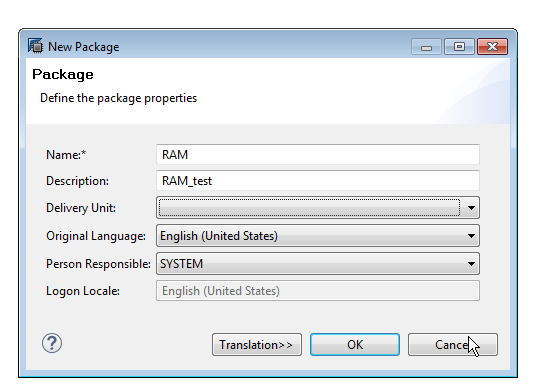
HOW TO CREATE NEW PACKAGE IN HANA USING HANA STUDIO


Types of SAP HANA Packages

There are two types of packages in SAP HANA; Structural and Non-structural.
1. Structural: In a structural package, the modeling content is organized in a structured fashion in a logical package tree. The structural packages only contain sub-packages and do not contain information objects. This prevents undesired creation of objects.
2. Non-structural: The non-structural packages, on the contrary, are not organized and contains both sub-packages and information objects.


A delivery unit is a collection of several packages, used for transporting content from one HANA system to another.

Thursday, 28 November 2019

Backup


Default location of HANA DB backup.


Sunday, 19 May 2019

SAP HANA COCKPIT NOTES 26:How to trouble shoot hana cockpit issues

troubleshooting method 1:


If you encounter issues with SAP HANA cockpit, you can use XS CLI commands to view services logs and application status. You can execute the XS CLI commands on the machine where the cockpit is installed, using the <SID>adm account, or remotely using the XSA Client. For complete details on logging into the SAP HANA XS advanced runtime console and on the XS CLI: Application Management commands, see SAP HANA Developer Guide for SAP HANA XS Advanced Model. 

troubleshooting method 2:

You can investigate potential issues by viewing the log file of a specific service with the command                                                          xs logs <APP> 

where <APP> is the name of the application whose log-file details you want to display in XS apps cmd.


EX:
In the log of cockpit-collection-svc, if you see: A collection could not be submitted for execution because the worker thread pool is exhausted, then consider increasing the collection worker thread pool in the data collection settings through the cockpit manager. Increase the threads incrementally, rechecking the log each time, until the issue is resolved.

troubleshooting method 3:


Monday, 31 December 2018

HANA DB backup using HANA studio

what is contained in the backup file?

The data backup includes not only data, but also data structure that are required for restore of DB.


why to take backup on regular basis?

To save data during disk failures


Pre-requsites:

DB user with roles: Backup Admin
                                Backup Operator
                                Catalog read
Note: same roles are enough for performing the recovery of HDB also.

SQL query for check the backup size:

select sum (allocated_page_size) from M_converter_Stastistics
select volume id, sum (allocated_page_size) from M_Converter_Stasticstics) group by volume id,

based on the out put of the above query --> make space arrangements.

Process:

Method1
  • Open HANA studio.
  • select the correct system for backup amomgs all systems.
  • Right click
  • choose backup
  • choose type as full / differential /incremental 
  • specify the location and prefix for the backup file.
  • conform 

Method 2

  • Open HANA studio.
  • login to system
  • open hdbsql
  • execute the query:

BACKU DATA USING FILE ('/usr/sap/<SID>/HDBXX/backup/data')