Showing posts with label basisbynaveen. Show all posts

Saturday, 19 July 2025

Life cycle of SAP


Life cycle of SAP
PhasesDescribtion of phase
EvalutionIn the phase, SAP team will sits with product based company and Analysis their business.
Project prepartionIn this phase, Project planning will be done.Goals,scope,timeline,budget & establishing the project team.
Business blue printBusiness processes mapping to corresponding SAP processes.
Realizationin this phase, actual configuration and customization of the system. only Development server will be designed here.
TestingWhat ever the development they did in above, tests will be done.
Final preparationProduction server starts building.
Go-liveFew configurations where are specifically to production server can be done in this phase.
Sustain/supportTo few errors in case of any and to adopt new features.
End of maintainenceSAP dont support for this versions.
EvalutionIn the phase, SAP team will sits with product based company and Analysis their business.

Sunday, 20 April 2025

Enqueue wp

SAP NetWeaver AS ABAP has an independent lock mechanism that's used to synchronize database access and at the same time ensure that two transactions can change the same data in the database in parallel.


As administrator, you therefore have no power over when a lock entry is created or deleted. Nevertheless, it’s extremely important that you understand the SAP lock mechanism because you may have to delete orphaned lock entries. The lock mechanism works closely with the update mechanism.

There are different types of locks:

Write locks (E): This is also known as exclusive lock mode as the lock data can be edited by only one user. Any other requests from work processes to set another write lock or read lock are rejected. A cumulate lock can be applied on the lock data by the same lock owner again.

Read locks (S): This is also known as shared lock mode as several users can have read access to the locked data at the same time. Additional read lock requests are entertained even if they are from different users. However, a write lock is rejected.

Enhanced write locks (X): This is also known as exclusive non-cumulative lock mode. An enhanced write lock can be requested only once even if it is by the same transaction.

Difference between write locks (E) and Enhanced write lock (X) is: write locks can be set and released by the same transaction several times but X type locks can also be set once even by the same transaction.

Optimistic locks (O): These locks are set up when the users display the data in change mode. Several optimistic locks can be setup on the same data. Optimistic locks are read locks (S), and later converted to write lock (E) when the user wants to save the data. If an optimistic lock on a data is changed to write lock (E), all other optimistic locks on that data will be deleted.

Locks that are set by an application program are released by the program itself or they are released by the update program once the database has been changed.

Transaction code SM12 can be used to monitor SAP locks.

:analysis


sm13 is for update wp monitoring.

in which we can retry the updates.

Tuesday, 4 March 2025

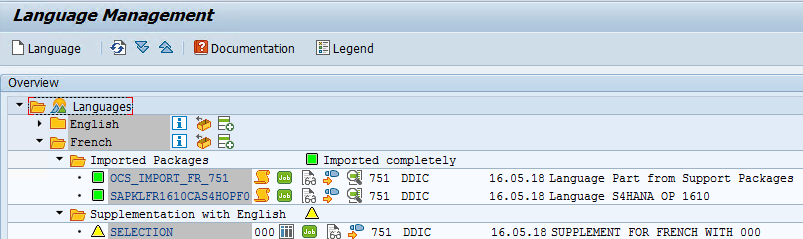
Language installation in SAP

 Italian Language installation

Download require .SAR files and extract to /usr/sap/trans/EPS/in.

sap6040g@scc4c . COM@LAZS4HS4sooo : / usr/ sap/ trans> 
/ usr/ sap/ trans 
sap6040g@scc4c . COM@LAZS4HS4sooo : / usr/ sap/ trans> 
SAPCAR: processing archive S4HANAOP101 ERP LANG 
/ exe/ SAPCAR 
IT. SAR (version 2.01) 
—xvf 
S4HANAOP101 
ERP 
L ANG 
IT. SAR 
x ITSAPKLIT1610CAS4HOPFO.PAT 
x sap language . mf 
S APC AR: 2 file (s) extracted 
sap6040g@scc4c . COM@LAZS4HS4sooo 
: / usr/ sap/ trans>

Login to 000 client

SE38 run Report: RSCPINST

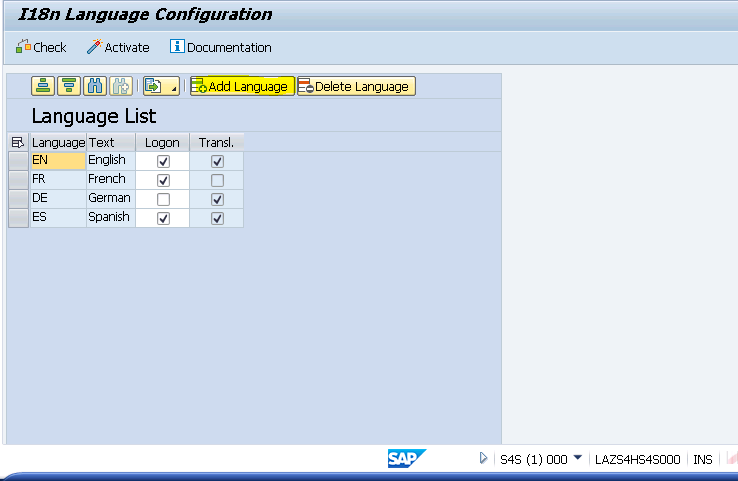
To add the Italian Language entries, run the report


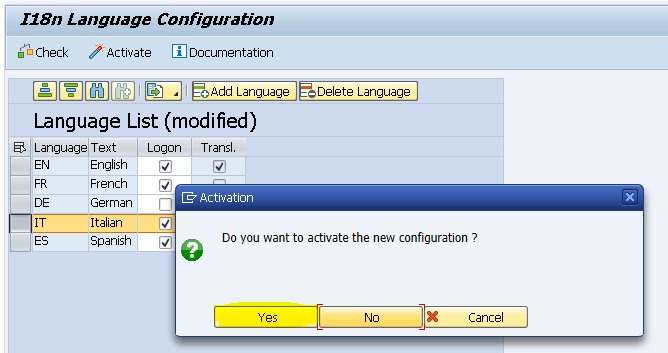
Add Language

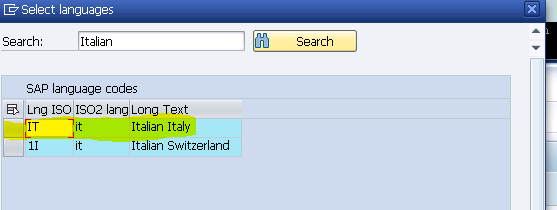
Select Italian Italy


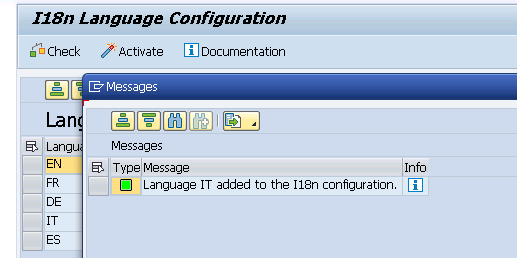
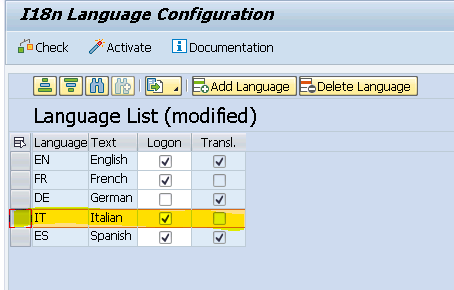
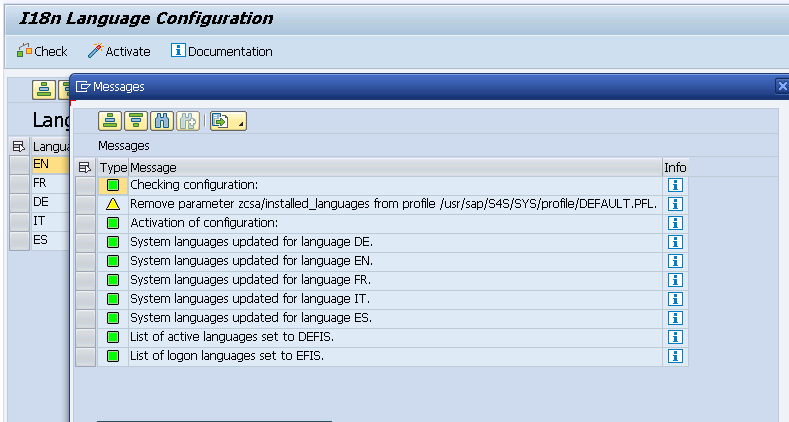
Select Italian language and Click on activate it


Select Yes to activate language


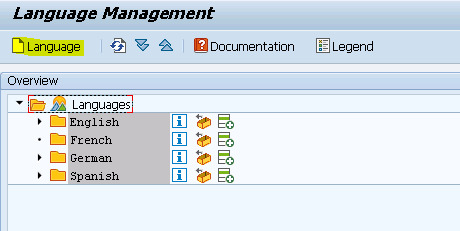
Add language to SMLT


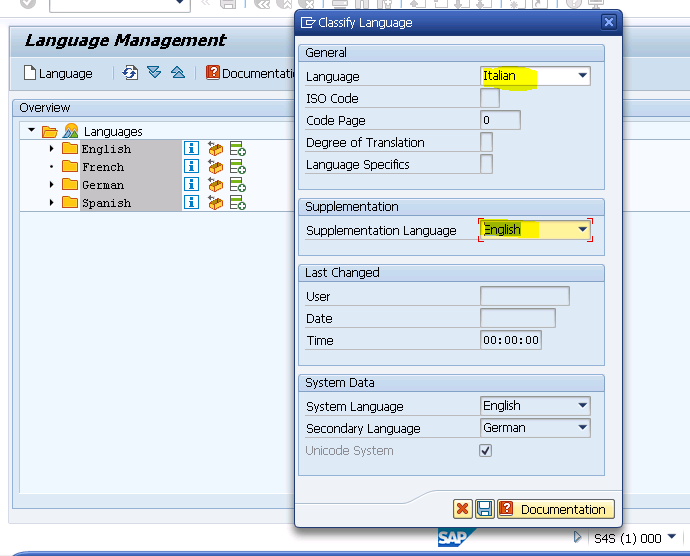
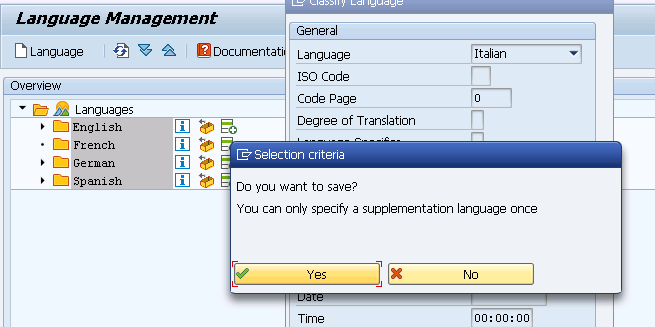
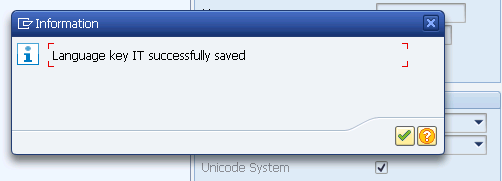
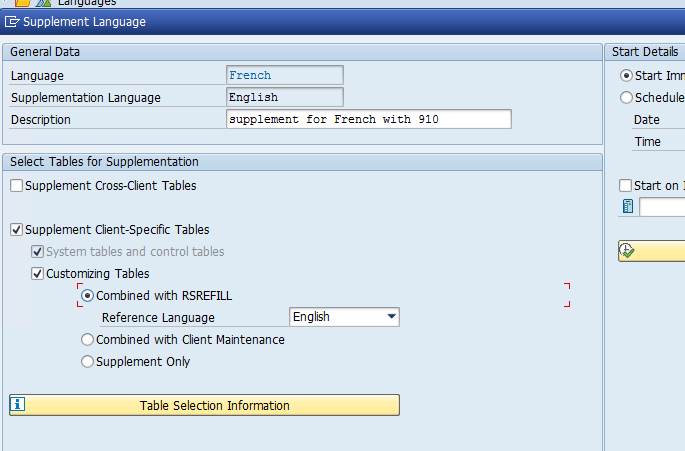
Provide Language and Supplement Language. Click on SAVE


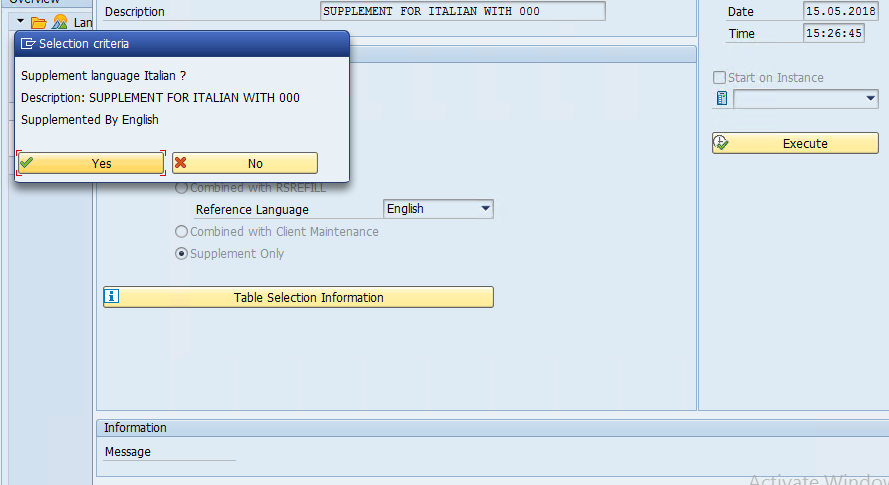
Click on Yes


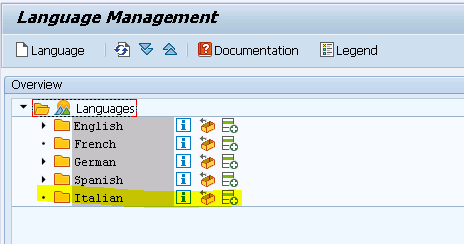
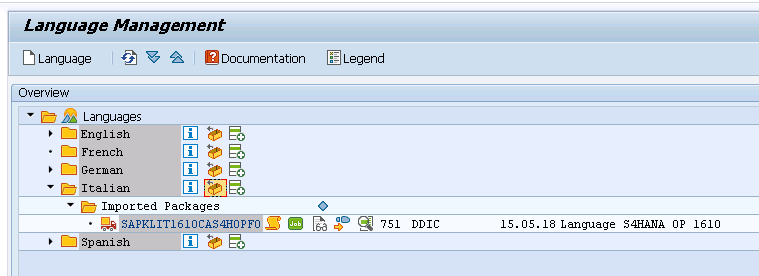
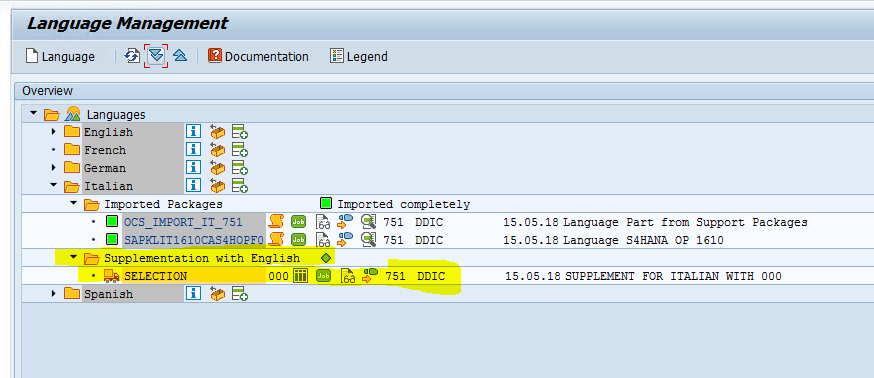
Italian language will appear in SMLT screen


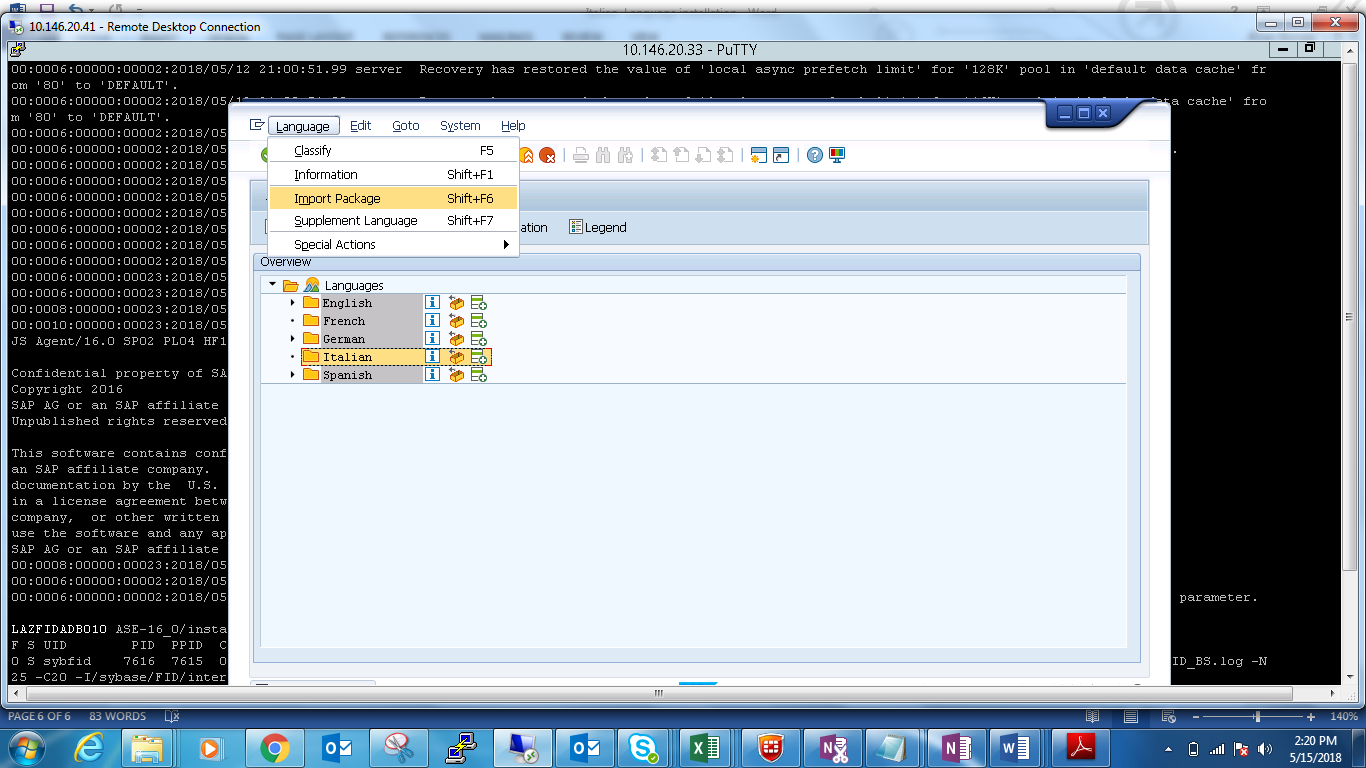
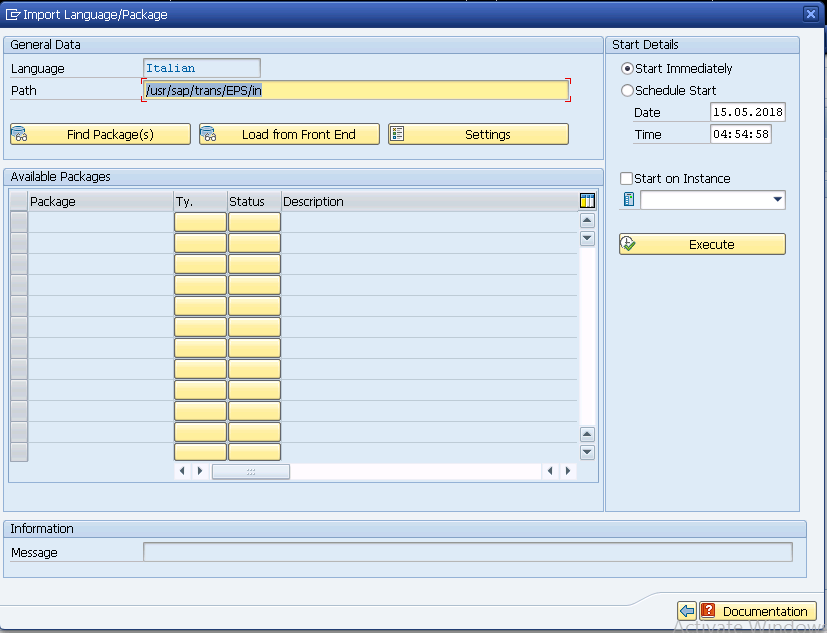
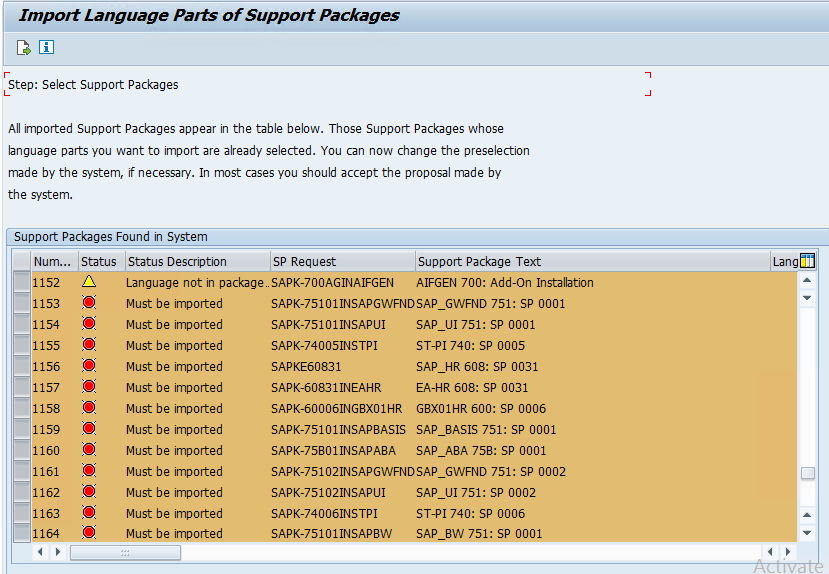
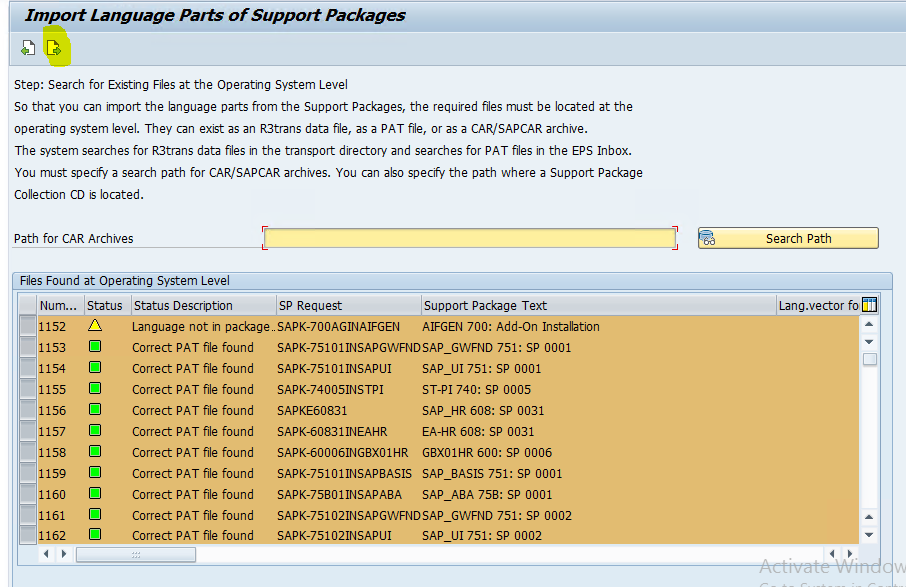
In SMLT, Select Language Navigate to Language🡪Import Package from SMLT.


It will take around 5-6hrs


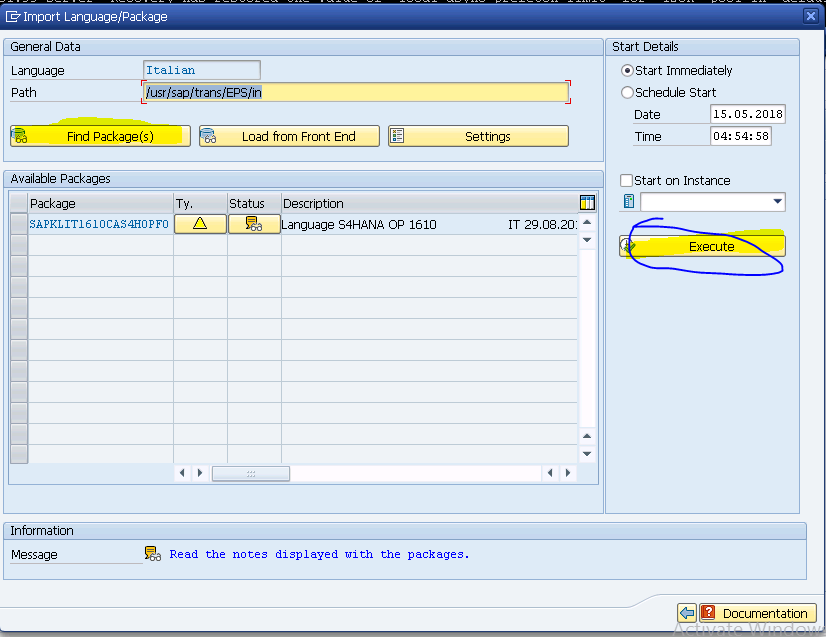
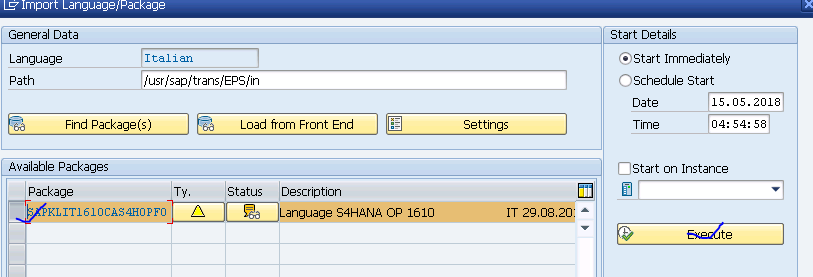
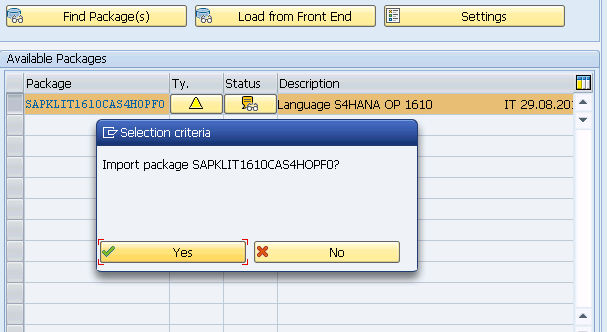
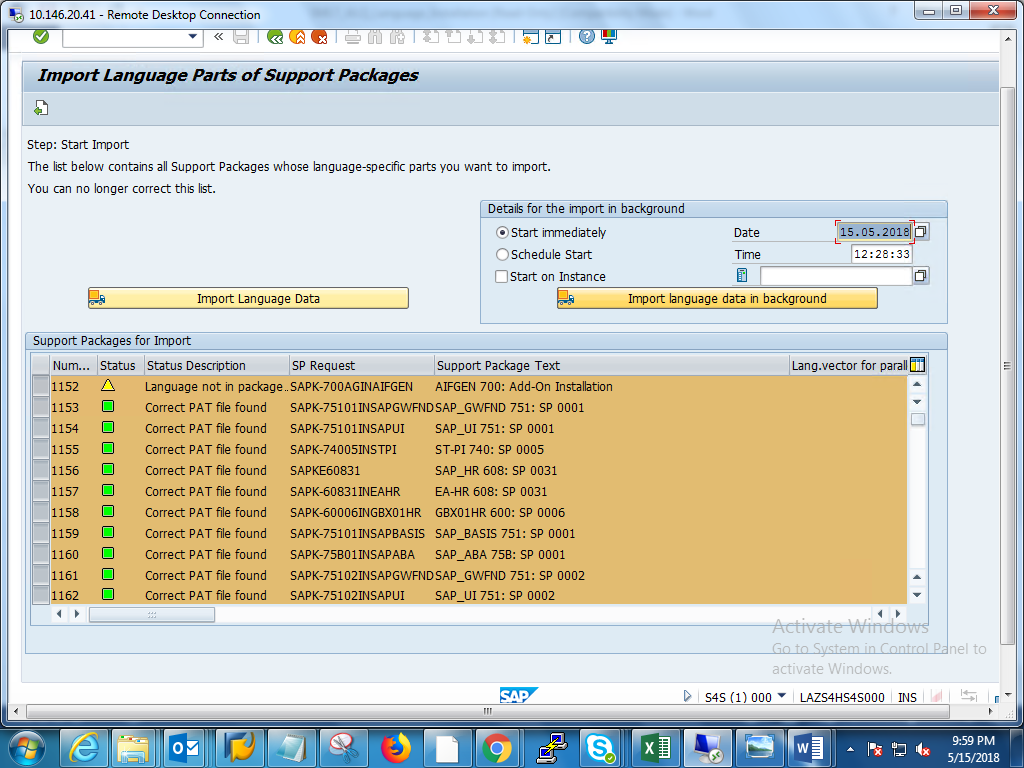
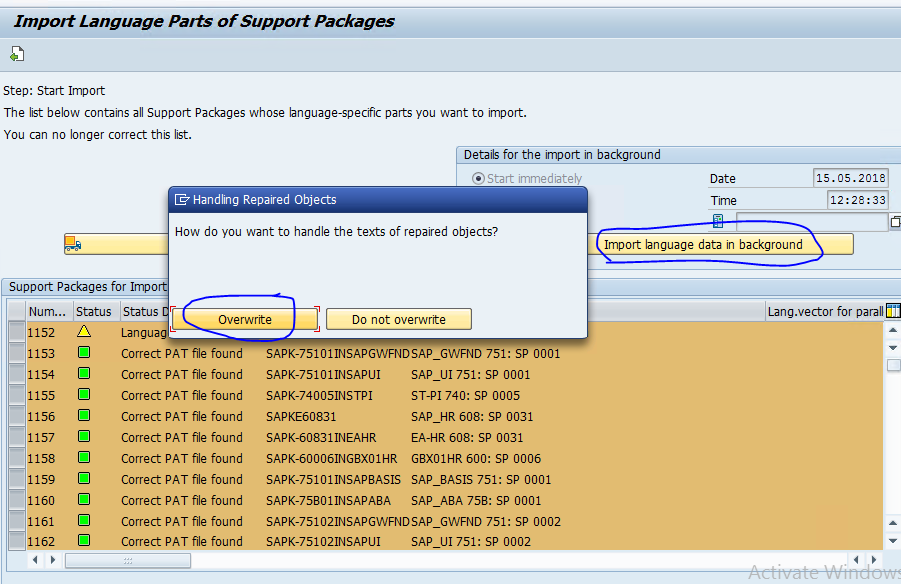
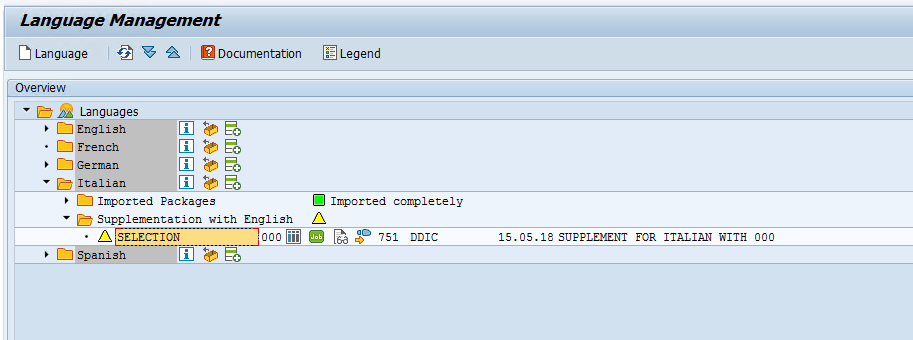
Select Package, and execute.


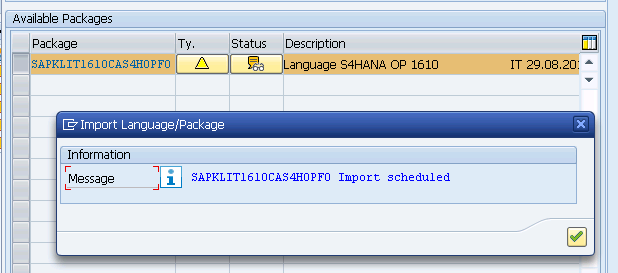
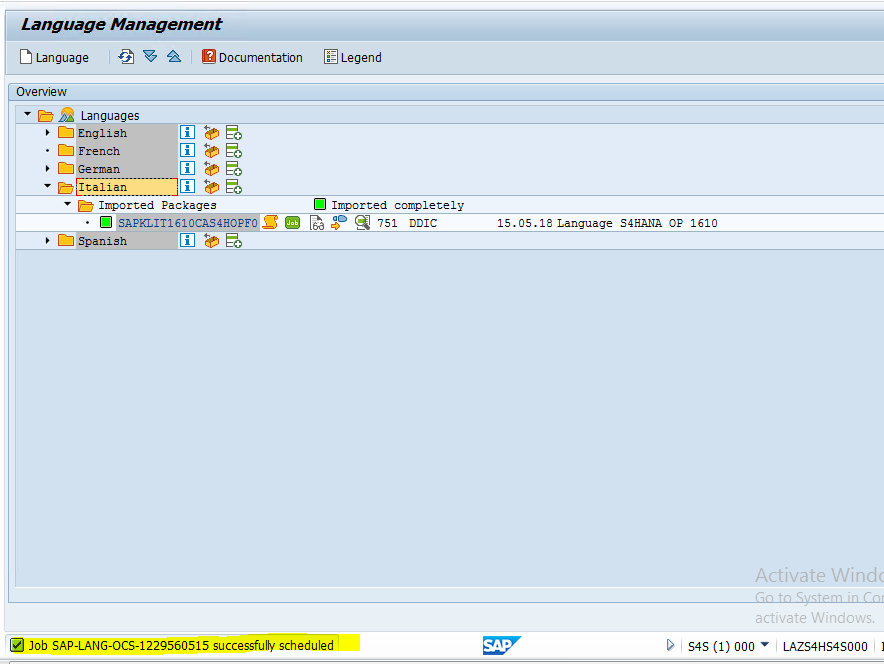
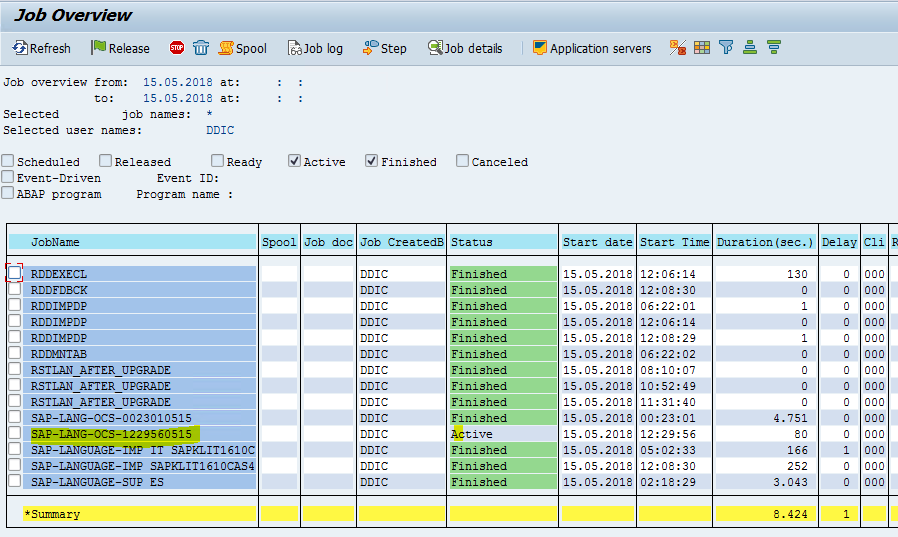
Job will be triggered in SM37


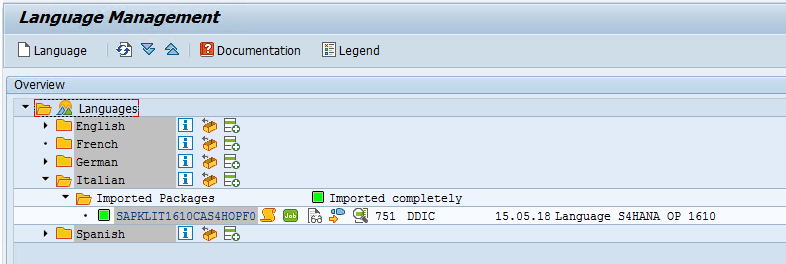
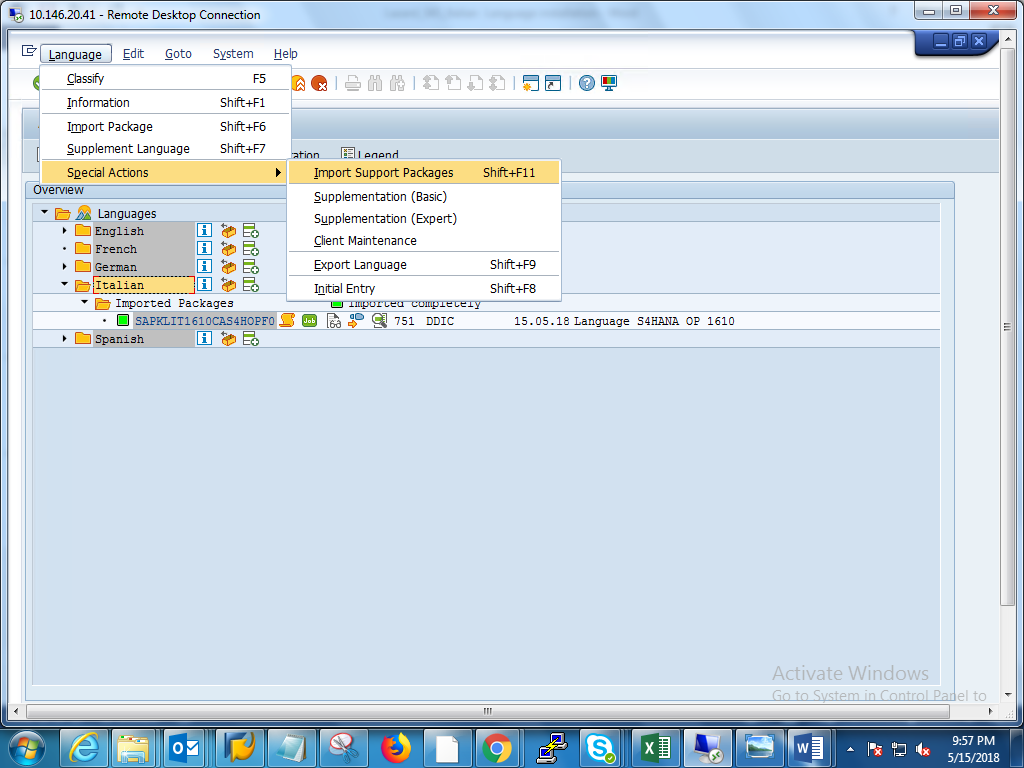
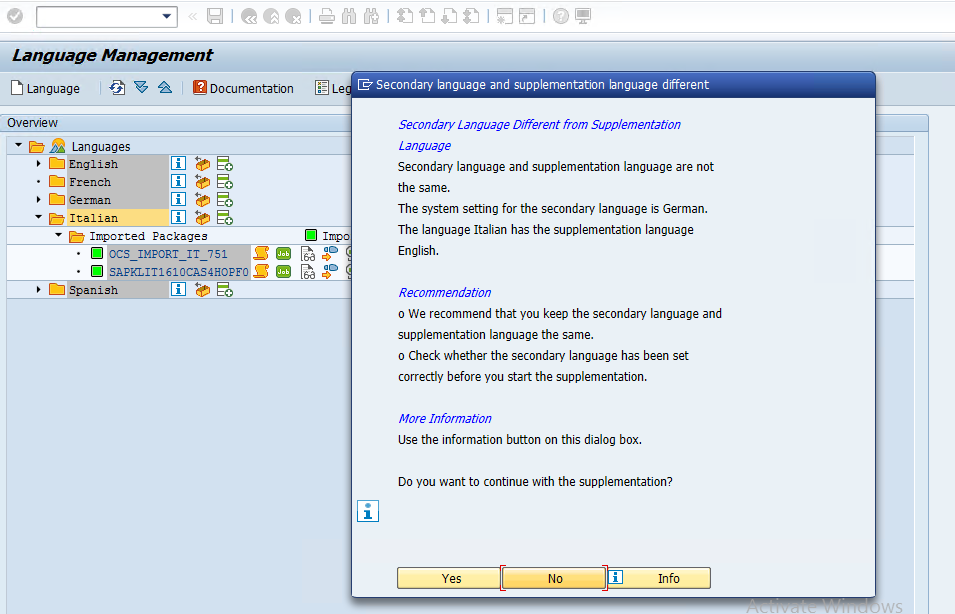
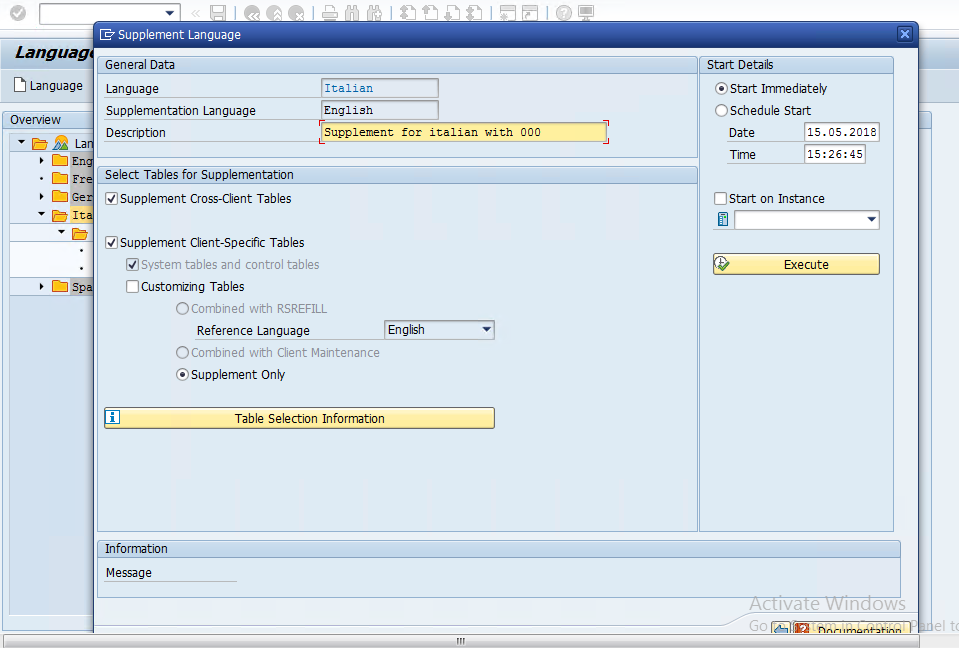
Supplementation started from here.


Particular Client ::910


Sunday, 16 February 2025

Background job administration - To trigger an event from Operating system(OS)

 To trigger an event from Operating system(OS):

login to os with sidadm
sapevt event=<backgroup job event @ sm64>  name=<sid> mshost=<hostname>

Monday, 6 January 2025

How to extend btrfs filesystem in SUSE linux

to check free space available to extend for VGS:

sudo vgs system 


SAPHANA:~ # df -Th

Filesystem              Type      Size  Used Avail Use% Mounted on

devtmpfs                devtmpfs  4.0M     0  4.0M   0% /dev

tmpfs                   tmpfs     6.2G     0  6.2G   0% /dev/shm

tmpfs                   tmpfs     1.3G   18M  1.3G   2% /run

tmpfs                   tmpfs     4.0M     0  4.0M   0% /sys/fs/cgroup

/dev/mapper/system-root btrfs      60G  3.9G   55G   7% /

/dev/mapper/system-root btrfs      60G  3.9G   55G   7% /.snapshots

/dev/mapper/system-root btrfs      60G  3.9G   55G   7% /boot/grub2/x86_64-efi

/dev/mapper/system-root btrfs      60G  3.9G   55G   7% /boot/grub2/i386-pc

/dev/mapper/system-root btrfs      60G  3.9G   55G   7% /srv

/dev/mapper/system-root btrfs      60G  3.9G   55G   7% /home

/dev/mapper/system-root btrfs      60G  3.9G   55G   7% /opt

/dev/mapper/system-root btrfs      60G  3.9G   55G   7% /tmp

/dev/mapper/system-root btrfs      60G  3.9G   55G   7% /var

/dev/mapper/system-root btrfs      60G  3.9G   55G   7% /root

/dev/mapper/system-root btrfs      60G  3.9G   55G   7% /usr/local

tmpfs                   tmpfs     637M   56K  637M   1% /run/user/466

tmpfs                   tmpfs     637M   56K  637M   1% /run/user/0

/dev/sr0                iso9660    12G   12G     0 100% /run/media/root/SLE-15-SP3-Full-x86_64187.11.001


1. lvextend -L +20G /dev/mapper/system-root


2. btrfs filesystem resize +20G /


Result:


SAPHANA:~ # btrfs filesystem resize +20G /

Resize '/' of '+20G'


SAPHANA:~ # df -h

Filesystem               Size  Used Avail Use% Mounted on

devtmpfs                 4.0M     0  4.0M   0% /dev

tmpfs                    6.2G     0  6.2G   0% /dev/shm

tmpfs                    1.3G   18M  1.3G   2% /run

tmpfs                    4.0M     0  4.0M   0% /sys/fs/cgroup

/dev/mapper/system-root   80G  3.9G   75G   5% /

/dev/mapper/system-root   80G  3.9G   75G   5% /.snapshots

/dev/mapper/system-root   80G  3.9G   75G   5% /boot/grub2/x86_64-efi

/dev/mapper/system-root   80G  3.9G   75G   5% /boot/grub2/i386-pc

/dev/mapper/system-root   80G  3.9G   75G   5% /srv

/dev/mapper/system-root   80G  3.9G   75G   5% /home

/dev/mapper/system-root   80G  3.9G   75G   5% /opt

/dev/mapper/system-root   80G  3.9G   75G   5% /tmp

/dev/mapper/system-root   80G  3.9G   75G   5% /var

/dev/mapper/system-root   80G  3.9G   75G   5% /root

/dev/mapper/system-root   80G  3.9G   75G   5% /usr/local

tmpfs                    637M   60K  637M   1% /run/user/466

tmpfs                    637M   56K  637M   1% /run/user/0

/dev/sr0                  12G   12G     0 100% /run/media/root/SLE-15-SP3-Full-x86_64187.11.001


Friday, 29 September 2023

SM51 - instances of SAP system - monitoring

 1. Access T-code:SM51.

Check:
1. Check the Application server instance - state as active.
2. During any maintenance activity, we can make state as - Deactivate.
       Goto--> Administration -->state -->Deactivate.

3.after completing maintenance activity, we can make state as - Activate.

       Goto--> Administration -->state -->Activate.

4.To check list of Users in all the clients(100,200 etc.,)
       Goto --> Users.
   Analysis the user load in all the clients.

5.This option lets you make the changes made in the OS hosts and services tables in a running.
    SAP system take effect by making the desired changes at the operating system level and then

      instead of restarting, resetting the host name buffer for the following components.


     SM51 --> Go to -->Host Name Buffer --> Reset --> Entire System.


Tuesday, 26 September 2023

Dialog work process status in sm50


Waiting: The process is waiting "Available" to serve the user..


Running: The process is executing the task.


Sleep mode: Waiting for resources( RFC problems).


ON hold: The user request is on hold by process for waiting certain resources on the other systems(RFC CPIC).


PRIV Mode: The process goes in to heap mode, it will be completed only after the task completion/ Timeout.


Stopped: The process is stopped due to an error.


Shutdown: The process is killed/shutdown but restart mode set to NO.


Wednesday, 2 November 2022

Concept of delta merge


* For analytics purpose only certain columns of tables will be used, so in these kind of cases the column storage is used.
when inserting new table entry row storage is perfered. So that all the entries will be storged in one region.


* while delta merge option is performing,Temporary Delta2 memory will created


Thursday, 13 October 2022

UAA setup - Access between tenant and HDI

 login to XSA - Cockpit.

Login to required space.

under services --> User - provided services

Click on New Space.

---------------------------------------------------------------------------------------

{
 

     "driver": "com.sap.db.jdbc.Driver",

     "tags":[

             "hana"

],

"user": "SYSTEM"

"password":<Password>

}

-----------------------------------------------------------------------------------------


Saturday, 24 September 2022

Create MTA(Multi Target Application) project

 Let us create a MTA project dedicated to SDI.

Steps:

  • From web ide --> workspace -->Right click --> New --> project from template --> Choose Multi target application(MTA) -->Next --> provide <project name> --> Next --> provide the space info (dev, prod) -->Finish.
  • Right click on the MTA project, which is created in the above step -->Build.
  • Now, we don't have SRC folder --> because this project does not have a database module.
    To create Database module: Right click on the project --> New --> SAP HANA Database Module --> Provide name of the HANA module --> Finish.
  • Right click on the HANA module folder, which is created in the above step -->Build.

Saturday, 17 September 2022

Different types of Nodes

Different types of Nodes available in webide :

  • Join
  • Non Equal join
  • Union
  • Minus
  • Intersect
  • Graph
  • Projection
  • Aggregation
  • Rank
  • Table Function
  • Hierarchy Function
  • Anonymization

  Calculated Column: A column which can be built on top of original columns in the view. it can also be used independently for eg to display static values , set flags and so on.

Mapping  tab: you are settle the required set of columns and assigning them to the next node.


Wednesday, 14 September 2022

Calculated column with 2 projections and 1 join

 syntax: "companyName"+'-'+"Legal"

Steps:

1. Right click on the SRC folder -->New --> Folder--> Provide folder name --> Ok.

2.Right Click on newly created folder by the above step -->New --> Calculation view.

3. Provide name for the calculation view --> 

     Namespace - Description.

     Data category - Dimension.

     Type - Standard

Finally Click on Create

4. Create 2 projections

   insert tables in to the projections.

5. Add join node.
feed the join node with 2 projections( by drag and dropping the projections to the join).


6. Double click on the join now.


create the connection between 2 foreign 


 7. in the properties section.
   

    swap the table to right and left, if needed.

   provide the cardinality info
  join type: Left outer, right outer & Full outer.


8.in projection (flow chat)

   again select the columns in the Mapping tab.

9.Next to Mapping tab --> calculated columns tab --> click on + symbol --> 

   Provide : name, 

in the expression edition --> add expression 

"companyName"+'-'+"Legal"


10. double click on Semantics  (in the flow chart).

select the foreign key, between the tables.

11. Save all.

12. Right click on the folder below SRC -->Build.


Sunday, 11 September 2022

Employee dimension calculation view

--------------------------------------------------------------------------------------------------------------------------------

 Steps:
1. Right click on the SRC folder -->New --> Folder--> Provide folder name --> Ok.

2.Right Click on newly created folder by the above step -->New --> Calculation view.

3. Provide name for the calculation view --> 

     Namespace - Description.

     Data category - Dimension.

     Type - Standard

Finally Click on Create


4. on projection --> Click + search for table and click on Finish.

5.Double click on the projection.
6. Drag and drop required columns from right to left side.
7.Click on Semantics  and select the key column.

8.Save all - option available on the left top corner.

9.Right click on the folder and Build.

10.Right click the employee table --> data preview --> Navigate to raw data tab.


Saturday, 10 September 2022

Full Outer Join


--------------------------------------------------------------------------------------

/* The table 1 has 78 rows

   the Business partner table has 45 rows*/


Select * from "<Drop and Drop table 1 from HDI>" as A

Full outer join "<Drop and drop table 2 from HDI>" as B

On A."<Foreign_key name of table A>" = B. "<Foreign_key name of table B>"


----------------------------------------------------------------------------------------

Monday, 1 November 2021

How to get hardware key of the ABAP system at OS LEVEL

 Login with <sid>adm

Cmd:


Saplikey -get


Output:


HARDWARE KEY = **************


Thursday, 8 July 2021

Friday, 18 June 2021

Enqueue work process utilized percentage monitoring

 in this post, how much enqueue WP is filled info will be shown.


Practical steps:

1. Access the T-code SM12.

2.Resultant screen will looks like below:


3. Perform the below highlighted navigation.

    More --> Extra --> Statistics.


4. Maximum no of lock entries supported by the server is 441075

   Current filled level is 334519

Conclusion:

Almost 75%+ portion is filled.