Showing posts with label how. Show all posts

Monday, 6 January 2025

How to extend btrfs filesystem in SUSE linux

to check free space available to extend for VGS:

sudo vgs system 


SAPHANA:~ # df -Th

Filesystem              Type      Size  Used Avail Use% Mounted on

devtmpfs                devtmpfs  4.0M     0  4.0M   0% /dev

tmpfs                   tmpfs     6.2G     0  6.2G   0% /dev/shm

tmpfs                   tmpfs     1.3G   18M  1.3G   2% /run

tmpfs                   tmpfs     4.0M     0  4.0M   0% /sys/fs/cgroup

/dev/mapper/system-root btrfs      60G  3.9G   55G   7% /

/dev/mapper/system-root btrfs      60G  3.9G   55G   7% /.snapshots

/dev/mapper/system-root btrfs      60G  3.9G   55G   7% /boot/grub2/x86_64-efi

/dev/mapper/system-root btrfs      60G  3.9G   55G   7% /boot/grub2/i386-pc

/dev/mapper/system-root btrfs      60G  3.9G   55G   7% /srv

/dev/mapper/system-root btrfs      60G  3.9G   55G   7% /home

/dev/mapper/system-root btrfs      60G  3.9G   55G   7% /opt

/dev/mapper/system-root btrfs      60G  3.9G   55G   7% /tmp

/dev/mapper/system-root btrfs      60G  3.9G   55G   7% /var

/dev/mapper/system-root btrfs      60G  3.9G   55G   7% /root

/dev/mapper/system-root btrfs      60G  3.9G   55G   7% /usr/local

tmpfs                   tmpfs     637M   56K  637M   1% /run/user/466

tmpfs                   tmpfs     637M   56K  637M   1% /run/user/0

/dev/sr0                iso9660    12G   12G     0 100% /run/media/root/SLE-15-SP3-Full-x86_64187.11.001


1. lvextend -L +20G /dev/mapper/system-root


2. btrfs filesystem resize +20G /


Result:


SAPHANA:~ # btrfs filesystem resize +20G /

Resize '/' of '+20G'


SAPHANA:~ # df -h

Filesystem               Size  Used Avail Use% Mounted on

devtmpfs                 4.0M     0  4.0M   0% /dev

tmpfs                    6.2G     0  6.2G   0% /dev/shm

tmpfs                    1.3G   18M  1.3G   2% /run

tmpfs                    4.0M     0  4.0M   0% /sys/fs/cgroup

/dev/mapper/system-root   80G  3.9G   75G   5% /

/dev/mapper/system-root   80G  3.9G   75G   5% /.snapshots

/dev/mapper/system-root   80G  3.9G   75G   5% /boot/grub2/x86_64-efi

/dev/mapper/system-root   80G  3.9G   75G   5% /boot/grub2/i386-pc

/dev/mapper/system-root   80G  3.9G   75G   5% /srv

/dev/mapper/system-root   80G  3.9G   75G   5% /home

/dev/mapper/system-root   80G  3.9G   75G   5% /opt

/dev/mapper/system-root   80G  3.9G   75G   5% /tmp

/dev/mapper/system-root   80G  3.9G   75G   5% /var

/dev/mapper/system-root   80G  3.9G   75G   5% /root

/dev/mapper/system-root   80G  3.9G   75G   5% /usr/local

tmpfs                    637M   60K  637M   1% /run/user/466

tmpfs                    637M   56K  637M   1% /run/user/0

/dev/sr0                  12G   12G     0 100% /run/media/root/SLE-15-SP3-Full-x86_64187.11.001


Sunday, 26 November 2023

How To Backup Windows Server 2016

 How To Backup Windows Server 2016


Here we’ll show you how to install the Windows Server Backup feature in Windows Server 2016 with PowerShell and then configure basic server backups.

We’ll also take a quick look at how the backup files are stored and see if they are at all encrypted or not.

In order to perform simple backup and restores out of the box, Windows Server 2016 provides the Windows Server Backup feature. While this does work it is fairly basic and lacks many useful features, if you have many critical servers to backup I highly recommend that you look at something else such as Microsoft’s Data Protection Manager (DPM) or a third party backup solution from some other vendor.

An example of this is that when you backup over the network to an external share with Windows Server Backup you can only store one restore point at a time, any further backups will overwrite existing ones which isn’t very useful if you actually need some sort of retention. The backups are also managed on a per server basis which makes them difficult to maintain and manage.

Install Windows Server Backup Feature

Before we can actually configure the backups, we must first install the Windows Server Backup feature. This can be done through the graphical user interface, however it’s just faster to simply use PowerShell.

First we’ll use the Get-WindowsFeature cmdlet to search for available features that contain the string ‘*Backup*’ in the Name field.

PS C:\> Get-WindowsFeature -Name *Backup*


As we can see Windows-Server-Backup is available for install but not currently installed.

Next we use the Install-WindowsFeature cmdlet to install the Windows-Server-Backup feature, as shown below.

PS C:\> Install-WindowsFeature -Name Windows-Server-Backup


Once complete we should see that the installation has completed successfully, no reboot is required for this feature, we can begin using it straight away.

Configure Backups

Now that we have installed the Windows Server Backup feature, we can begin to configure our server backups. To begin we’re going to open the Windows Server Backup console from the Tools menu in Server Manager as shown below.


From the wbadmin window that opens up, select “Local Backup” from the menu on the left. We will see that there is a warning noting that no backup has been configured for this computer, which is currently expected. We can either configure a backup schedule which will perform the backup as we define, or we can perform a once off backup. Here we’ll setup a backup schedule, by clicking “Backup Schedule” on the right.


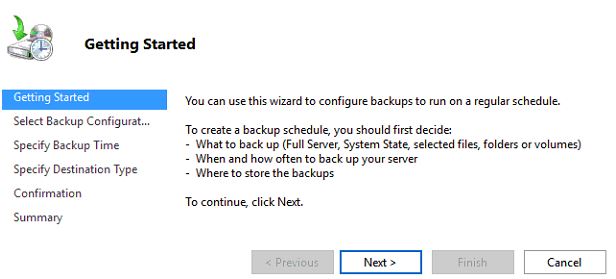
This will open up a Getting Started window advising that we can use this wizard to configure a regular backup schedule for the full server, system state, selected files, folders or entire volumes – click Next to proceed.


On the next Select Backup Configuration window we can select if we want to perform a full server backup which is the recommended and default action, or we can optionally select custom to pick specific volumes or files that we want to backup rather than the full server. In this example we will be configuring a full server backup, however you can change this to suit your requirements.


The next window allows us to specify the time the backup should run. We can set the backup to run once daily at a specified time, or we can optionally have it run multiple times per day by selecting the more than once a day option and adding the times the backup should run to the right side.


Next we will be asked to specify the destination of our backup data. The recommended option is to store the data on a separate disk that is attached to the server, however we can also change this to backup to another volume, or a network share. In this example I’ll be using a network share as I have one available, however note that there is a limitation of this, we will only be able to store one backup point at a time as new backups will overwrite the existing one. This limitation does not exist when you backup to another disk or volume.

We will now specify the network location, here I pick a file share that is available on the local network and click Next to continue. If you selected a disk or volume destination rather than network, you would instead be asked to pick that disk or volume here.


Finally we are presented with a confirmation screen which will summarize our options, click the Finish button to complete the process and accept this, or otherwise go back and make any changes as needed. The summary notes that as we are performing a full backup, we will be able to perform bare metal recovery of the entire system which is fairly powerful.


That’s it, the backup should automatically start at the time specified. We can manually initiate it by going back to the Windows Server Backup window and selecting “Backup Once”. From here we are given the option to create a once off backup based off of our scheduled backup, so all of the same settings will be used but we will be running the backup now rather than at the scheduled time.

Are Windows Server Backups Encrypted?

This is a common question that I’ve seen asked a few times, so I thought I’d take the opportunity to answer it here. No, by default backups in Windows Server 2016 (and previous versions for that matter) are not encrypted. We can confirm this by simply browsing to the location that we have specified to backup the data to and look through it. Primarily a .vhdx file is created for the C:\ drive of the server, which we can easily mount through disk manager, assign a drive letter to and then browse through the files and folders.

To encrypt the backup files we could setup Bitlocker on the disks where the backups are being stored, however note that this only protects the data at rest. If the data can be accessed while the drive is available for the backup to work, it could also be read by any potential attacker during this time.

Summary

We have shown you how to install the Windows Server Backup feature in Windows Server 2016 using PowerShell, and then configure a basic backup schedule to a network share.

We also then confirmed that the backup files are not encrypted, so additional steps should be taken to protect them.


Monday, 1 November 2021

How to get hardware key of the ABAP system at OS LEVEL

 Login with <sid>adm

Cmd:


Saplikey -get


Output:


HARDWARE KEY = **************


Saturday, 12 June 2021

How to make one SAP application dialog instance in to passive mode.

About:

This article is all about, how to make one particular SAP application dialog instance in to passive mode.


Case studies of this activity:
  • when maintenance activity is going on one particular sap instance.
  • during resolving few abap dumps in ST22.
Practical steps:

Step1: login to ABAP server through SAP GUI.
Step2: Access the t-code: SM51.
Step3: perform the below navigation to make one SAP application dialog instance in to passive mode.
                          Goto--> Processes -->state-->Deactivate.


Saturday, 6 March 2021

How to check HA replication info

open putty session and execute below sequence of commands:


 1. sudo su - <sid>adm

2.hdbcons

3.replication info

check the time stamp in the lines:
                replylogpostimestamp : 20.12.2020 - 11.32.15

                shippedlogpostTimestamp : 21.12.2020 - 11.32.15

                       * 32 - seconds.

                       * 15 - msec

Tuesday, 2 March 2021

How to use dpmon tool - to monitor work process status @OS

 Dpmon - Dispatcher monitoring 

Dpmon tool is use to check the status of  work process or dispatcher queue @ operating system level without login to SAP GUI.


use cases:

1. To get the status of work process @ OS level, when the SAP GUI login is not possible.


Practical steps:

1.login to putty session using <sid>adm user.

2.To list down the available profiles, issue command- cdpro or (/sapmnt/<SID>/profile)

3.follow by command - ls

4.dpmon pf=<use_the_profile_used_for_application_server> - results shows dispatcher queue statistics.

5.type 'm' to display all the menu available for the dpmon.

6.type 'I' to display work process overview.

7.step 4,5,6 can be replace with command - dpmon m i

8.if all the work process are full take the PID of the work process and kill the process id with command- kill -9 <PID>


Thursday, 24 September 2020

How to release an elastic ip to avoid unwanted billing in AWS

 This will provide you procedure for Disassociate public ip which is already assigned to EC2 instance and Release public IP which is associate to AWS account. To avoid unwanted billing with unwanted public ip.

Practical steps:

  • From the Elastic ip page --> Right click on the Elastic IP --> Disassociate address.


  • Then the below conformation screen will appears, conform it.                                                         


By the above steps, the fixed public ip which is assigned to one EC2 will be removed. As usually for every time when EC2 instance restarts new public ip will be assigned.


By the below releasing address process:                                                                                             

the public ip will be removed from AWS account to avoid unwanted billing, if the public ip is not longer use.

conform it in the conformation screen.                                                                                                          


you can see the public ip is now removed in the Elastic ip page.


Monday, 21 September 2020

How to make changes in assigning security groups for an existing security groups in EC2

From the EC2 instance launching page --> right click on the instance --> Networking -->Change Security Groups.


Assign or un assign security groups by checkbox &Click on Assign Security Groups.                                        


Sunday, 23 August 2020

How to SSH into your EC2 instance

 SSH is one of the most important function.It allows you to control a remote machine,all using the command line interface.

Practical steps:


  1. Collect the Public DNS info from the AWS console.


2. login in to login(on-premise) linux host.

3. cd to the directory,where your private key is available.

4.issue the OS command: chmod 777 <private_Key>

5.issue the SSH command to control the remote system:
   
    ssh -i ./<private_key.pem> ec2-user@<DNS>

the above command works only if the private key location directory and  PWD is same.

in place <DNS>, provide public DNS name as shown in step1.

 6. That's it you got remote system access now.perform your activity in the remote system with command line interface(CLI).

7.to exit from SSH connection, provide exit command.So that remote host connection will close here.