Showing posts with label new. Show all posts

Saturday, 21 November 2020

Migrate EULA price list to the new contract

Due to business expansion,  end user & SAP users expansion, ERP companies buy new EULA (End User License Agreement) from SAP. The below process need to perform to migrate from present price list of ELUA to new price list.

1.Access the T-code: USMM

  2. Navigate to Environment --> Migration of Price list.                                                                                 


3. Select respective user changes from present user type to target user type.                                                          
then click on execute.


Friday, 2 October 2020

Attach new EBS volume to EC2 instance

This post will help you to attach a newly crated EBS to volume to particular EC2 instance.

Note: EBS volumes can attach to EC2 only, if both EC2 and newly created EBS volumes are in same Availability  Zone(AZ).


Here are the practical steps:

From the EC2 console page --> Navigate to Elastic Block Storage --> volumes.

select the newly created EBS volume --> Right click on it --> choose with Attach volume option(as shown below).


Provide instance id (which will obtain in EC2 launch page, instance id id EC2 instance specific).
Device : /dev/sdf or /dev/sdp, based on previously available volume.                                            
Click on Attach.                                                                                                                               


                                Thats all the volume is attached to EC2 instance now.                           


Creating new EBS volume

 This post will help you to  create new EBS volumes in AWS.


Practical steps:


From the EC2 launch page navigate to volumes.                                                                                                      


Click on create volumes


Provide details:

1.from the volume type dropdown, select the required volume type.
2.provide size of the volume in GB
 
    based on the size the volume, the iops value will changes.
    suppose for 2GB - min/max iops is 100/3000
    if size of volume is 200GB, then min/max value will be 600/45000


---------------------------------------------------------------------------------------
if the requirement is to create a EBS volume to attach to one specific EC2 instance.
check the Availability zone information here. from running EC2 instance page.


-----------------------------------------------------------------------------------------------------
Enable encryption if really required.
tags are optional.
click on Create volume 


Volume created successfully.                                                                                                                                          


Tuesday, 21 July 2020

Linux command to add mount point to device

To add new mount point to device /dev/xvdf

$sudo mount /dev/xvdf /mnt/new_folder

To unmount a exist mount point

$sudo unmount /mnt/new_folder


Thursday, 30 April 2020

How to signup for AWS platform

Let us get hands dirty:Practical steps for sign up to AWS 


  1. Visit https://aws.amazon.com/ or search for aws.amazon.com 


2.The official web site look like below:
    Click on Create an AWS Account option.Highlight in the below screenshot.


3. The Resultant screen from step 2, will be like below screen.


  • In the above screen, Provide Email address in respective field.This email address will act as root account for AWS account.
  • Provide password & confirm password details.As this is fresh account, provide password based on their own convenience.
  •  Fill AWS account name field with meaningful value. like AWSAccount2020. which basically used for description of AWS account.
  • Once after filling all the information.Click on Continue.
4. Provide details as request below & Click on Create Account and Continue as highlighted below.


5.Then Screen prompts for collecting payment information, provide and click on secure submit.


6. Enter phone number details,Captcha and click on Contact me


7.AWS support team will provide you, one security code by calling to the registered mobile number.


8.Click on continue.


9.Select plan based on client business reqirement.

10.Enter your role,interested area and click on submit as shown below.followed by click on sign in to the console as highlight below.

11. That all, we can log in now with new account now.By providing register email details as shown below.
     

Friday, 27 December 2019

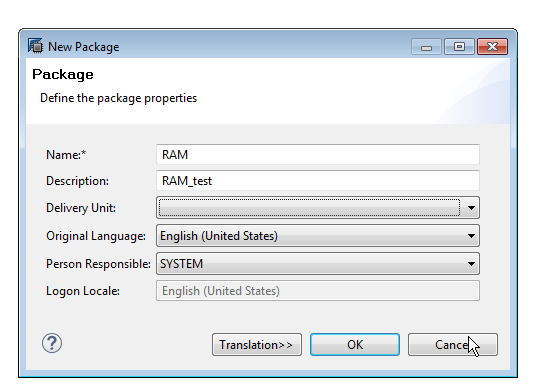
HOW TO CREATE NEW PACKAGE IN HANA USING HANA STUDIO


Types of SAP HANA Packages

There are two types of packages in SAP HANA; Structural and Non-structural.
1. Structural: In a structural package, the modeling content is organized in a structured fashion in a logical package tree. The structural packages only contain sub-packages and do not contain information objects. This prevents undesired creation of objects.
2. Non-structural: The non-structural packages, on the contrary, are not organized and contains both sub-packages and information objects.


A delivery unit is a collection of several packages, used for transporting content from one HANA system to another.

Tuesday, 23 July 2019

SAP HANA COCKPIT NOTES 28: creating NEW tenant Database in HANA

Article About:

how to create new tenant database in HANA DB through HANA COCKPIT.

Content:

here are the steps to create new tenant database in HANA cockpit,

1.connect to system database --> navigate to overview page.

2. on the overview page, click the overall tenant statuses tile to open manage databases.


3.click on create tenant button.
3b. then click on create empty tenant option.


4. provide inputs 

  • tenant database name: SID
  • system user password: 
  • conform system user password: 
  • in Advanced settings:
                start Automatically  is enable by default.

Note: will have option to defined HOST and port details in case of distributive
          environment.

Have an option to add additional services based on tenant Database technical and business requirements.


5. Finally click on Create tenant database.


6.conformation screen is as below.                                                                                                             


7. the new tenant database need to add in resource groups by administrator through cockpit manager.      
open cockpit manager -->register resources-->register resource--> provide inputs like host name, instance name & number.


                                                                     OR 
create a tenant database using SQL query in HANA studio.with 3 steps.


step1:  open SQL cmd window from HANA studio.
step2:  Run the SQL query as shown in the below screenshot.
step3: finally execute it.