Showing posts with label BASIS. Show all posts

Tuesday, 4 March 2025

Language installation in SAP

 Italian Language installation

Download require .SAR files and extract to /usr/sap/trans/EPS/in.

sap6040g@scc4c . COM@LAZS4HS4sooo : / usr/ sap/ trans> 
/ usr/ sap/ trans 
sap6040g@scc4c . COM@LAZS4HS4sooo : / usr/ sap/ trans> 
SAPCAR: processing archive S4HANAOP101 ERP LANG 
/ exe/ SAPCAR 
IT. SAR (version 2.01) 
—xvf 
S4HANAOP101 
ERP 
L ANG 
IT. SAR 
x ITSAPKLIT1610CAS4HOPFO.PAT 
x sap language . mf 
S APC AR: 2 file (s) extracted 
sap6040g@scc4c . COM@LAZS4HS4sooo 
: / usr/ sap/ trans>

Login to 000 client

SE38 run Report: RSCPINST

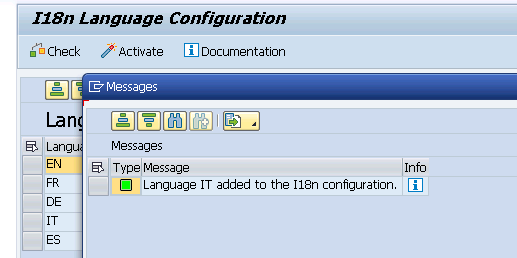
To add the Italian Language entries, run the report


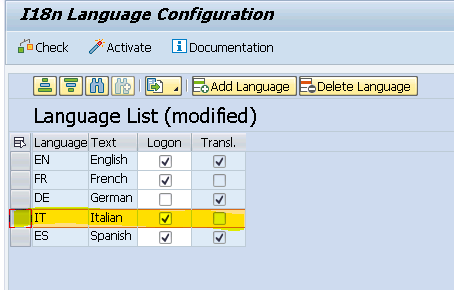
Add Language

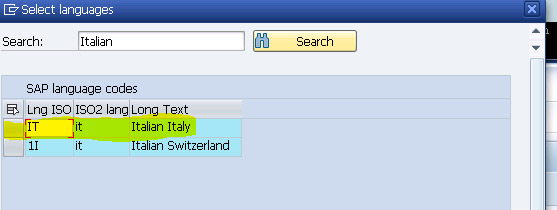
Select Italian Italy


Select Italian language and Click on activate it


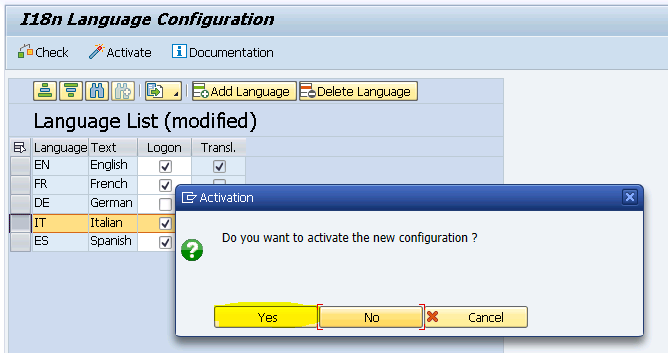
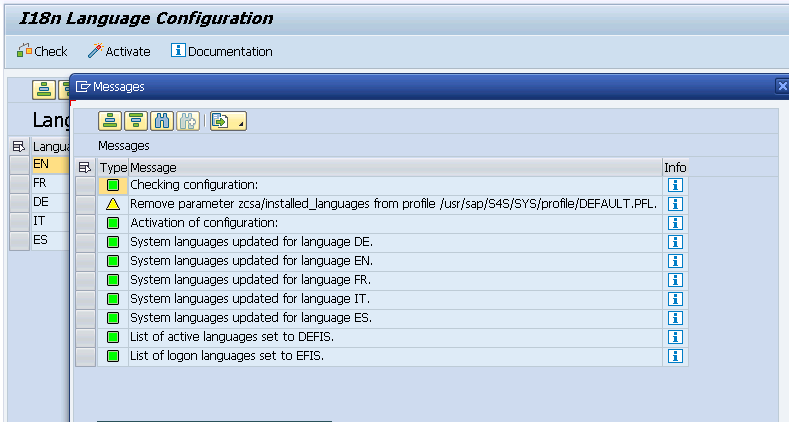
Select Yes to activate language


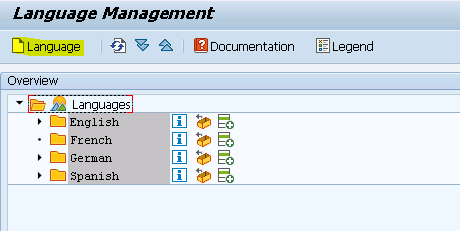
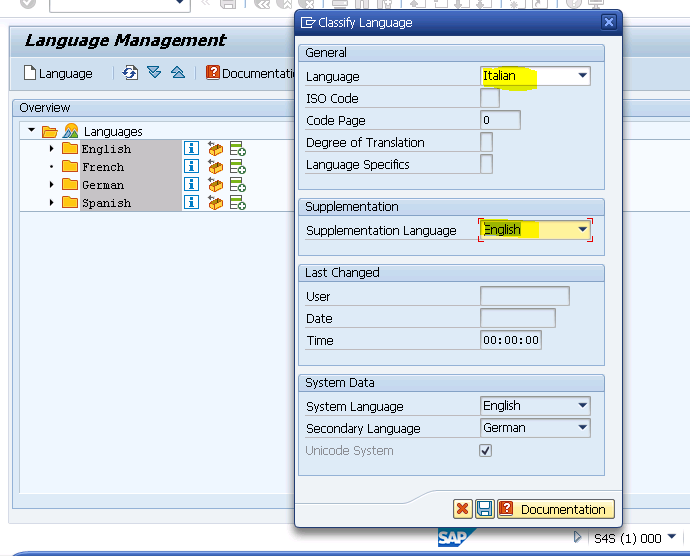
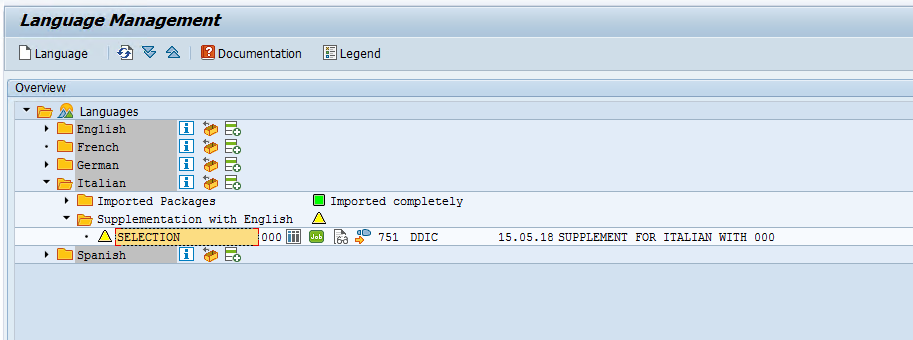
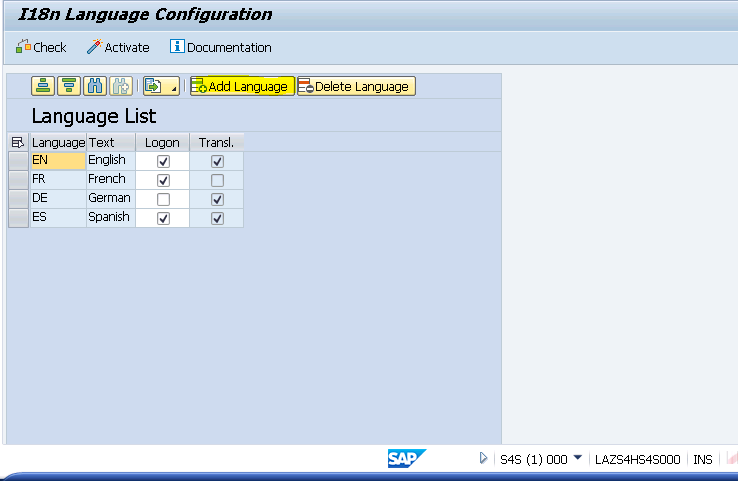
Add language to SMLT


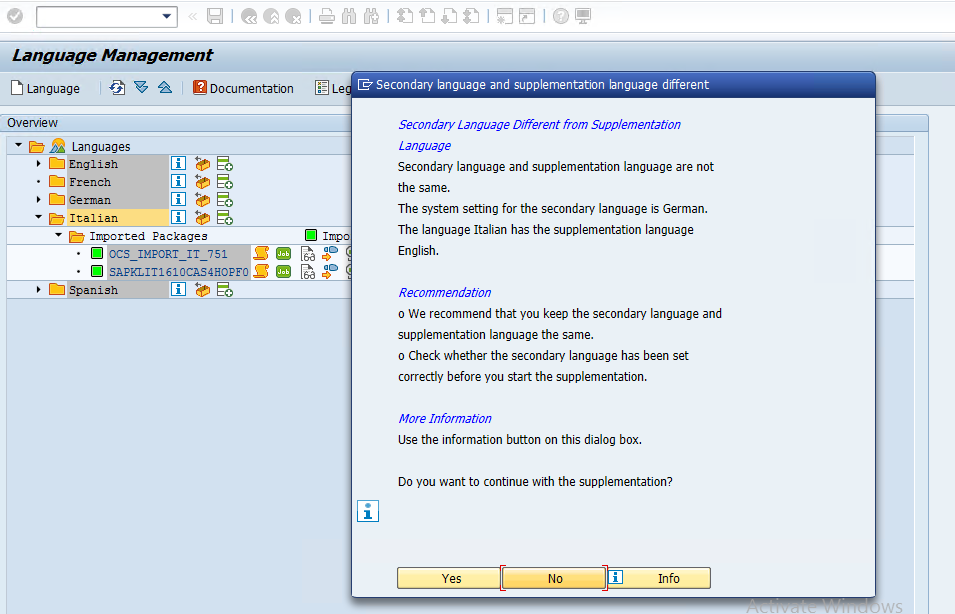
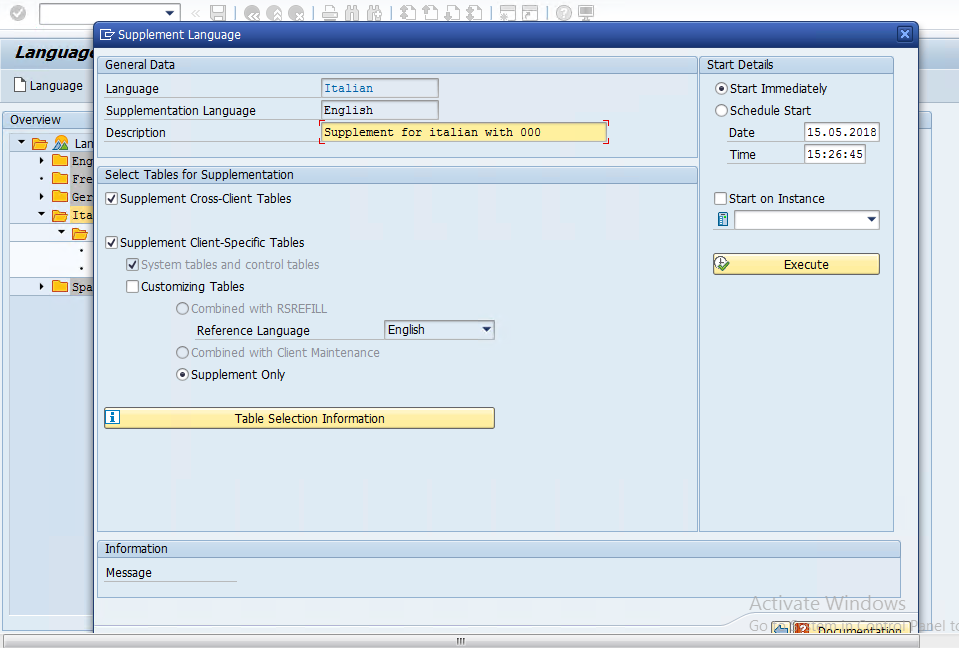
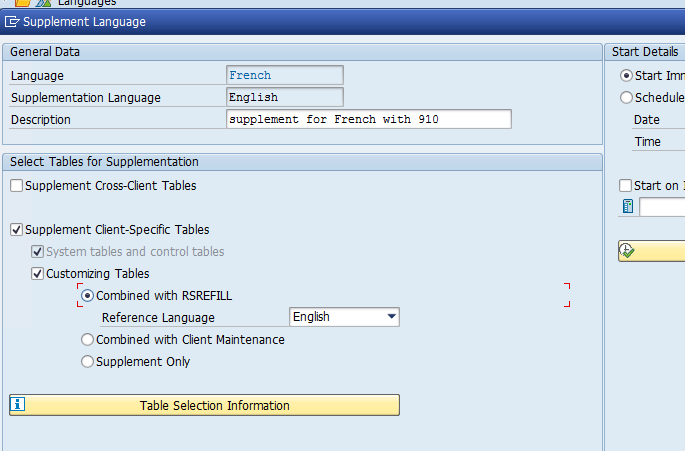
Provide Language and Supplement Language. Click on SAVE


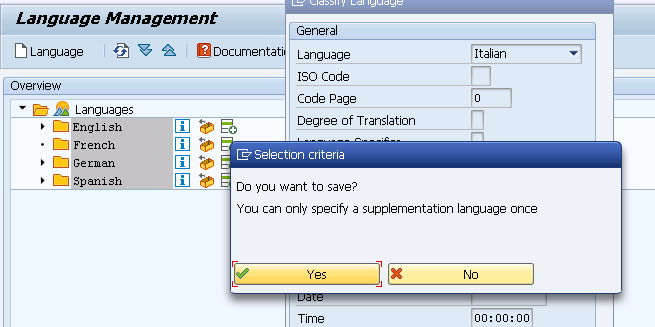
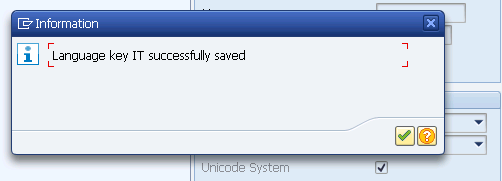
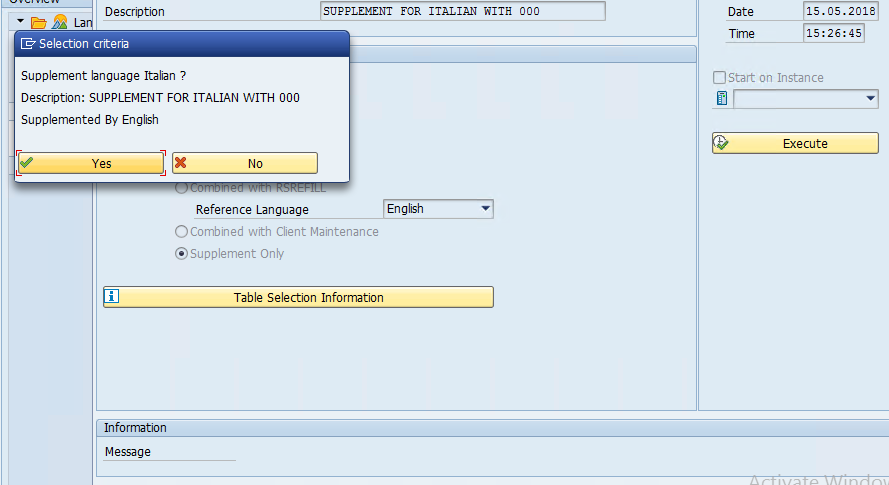
Click on Yes


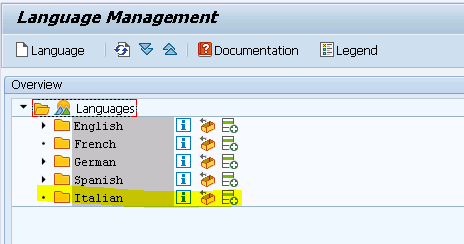
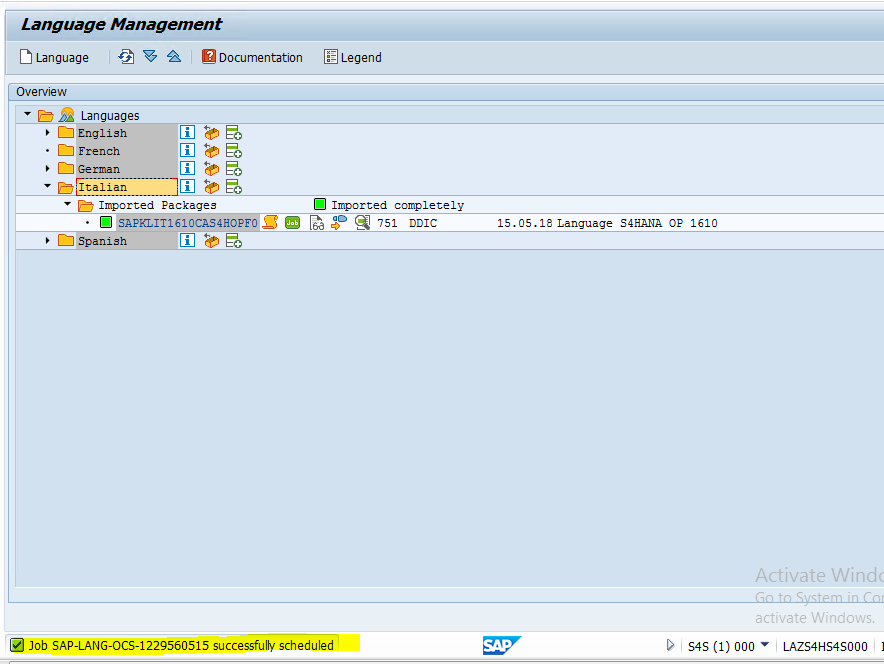
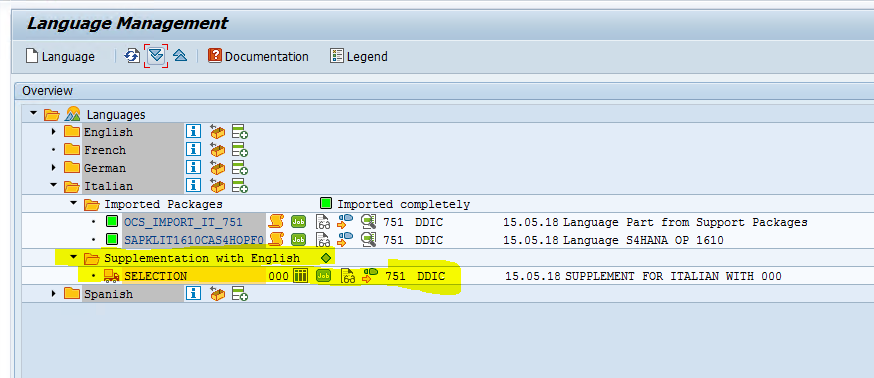
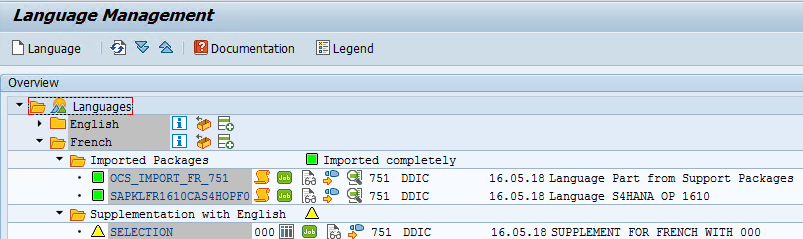
Italian language will appear in SMLT screen


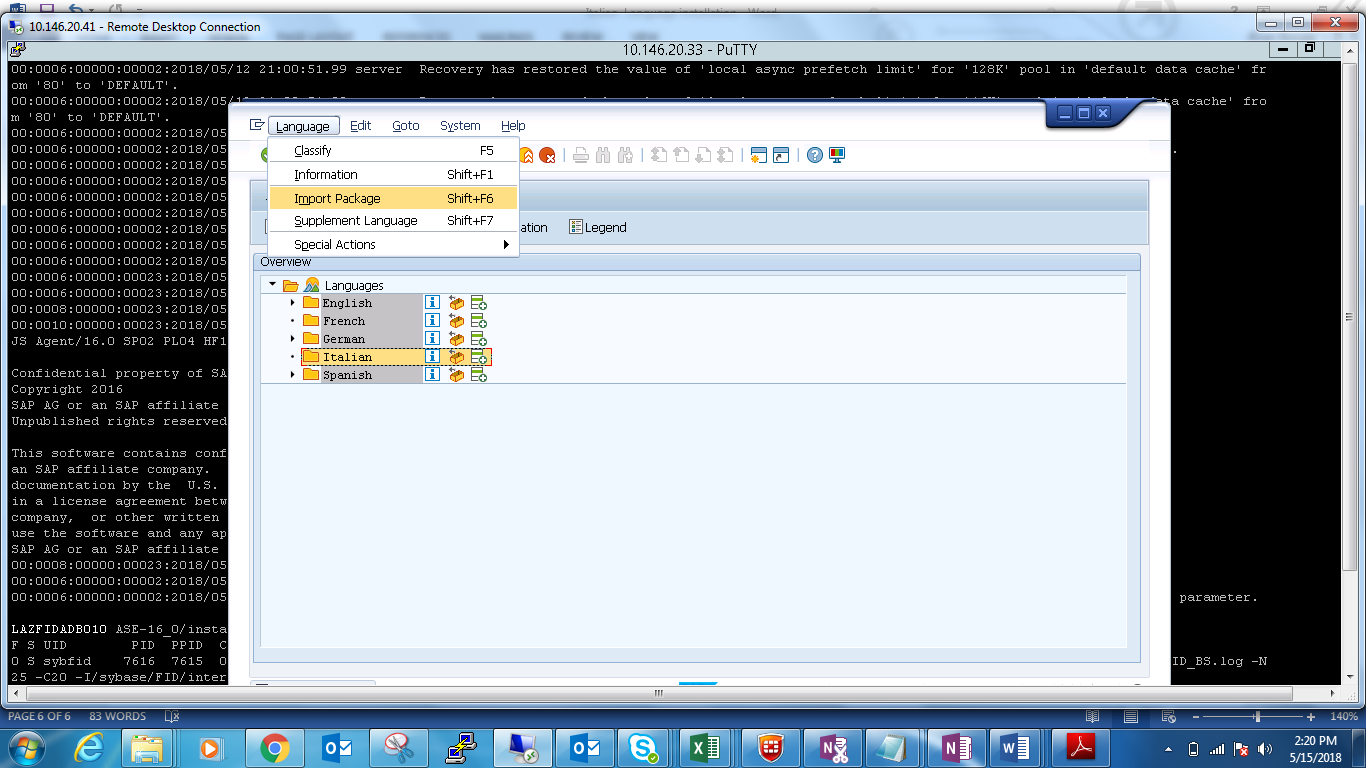
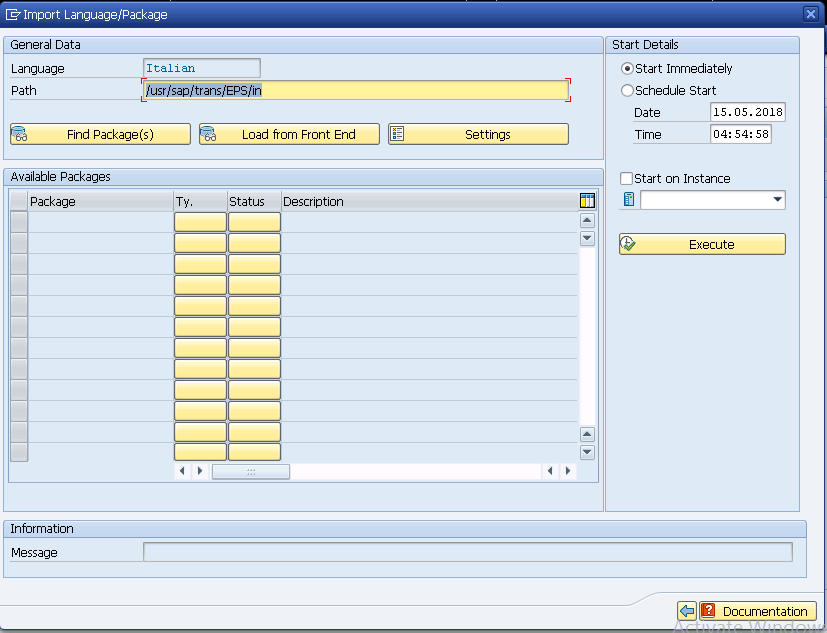
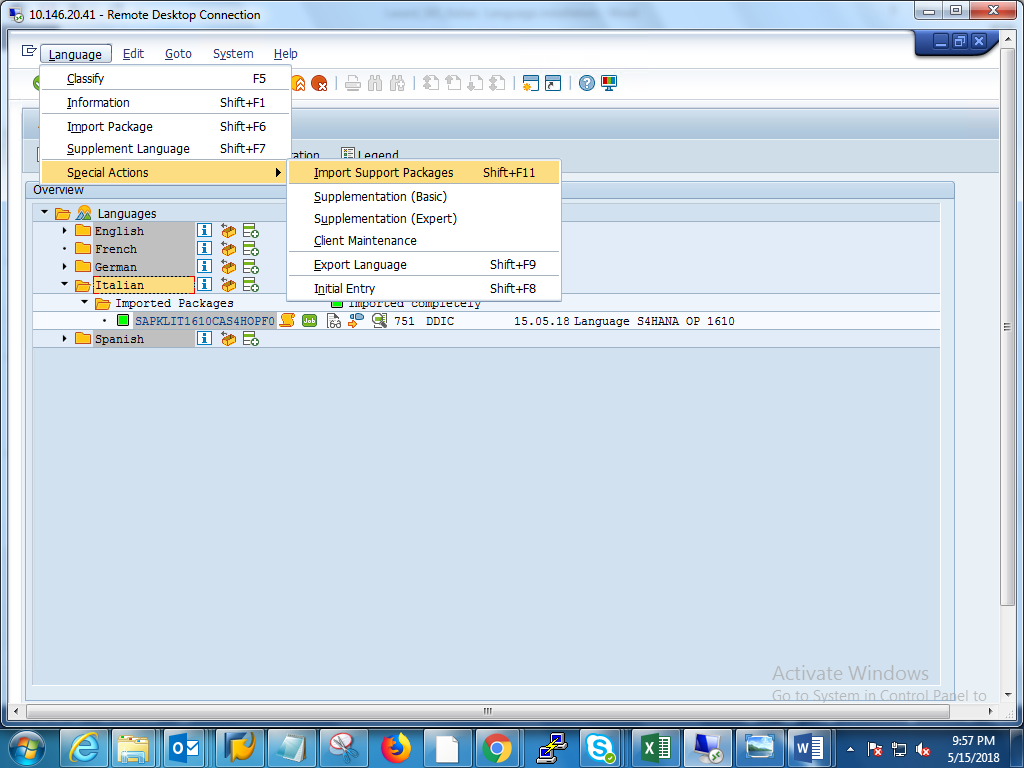
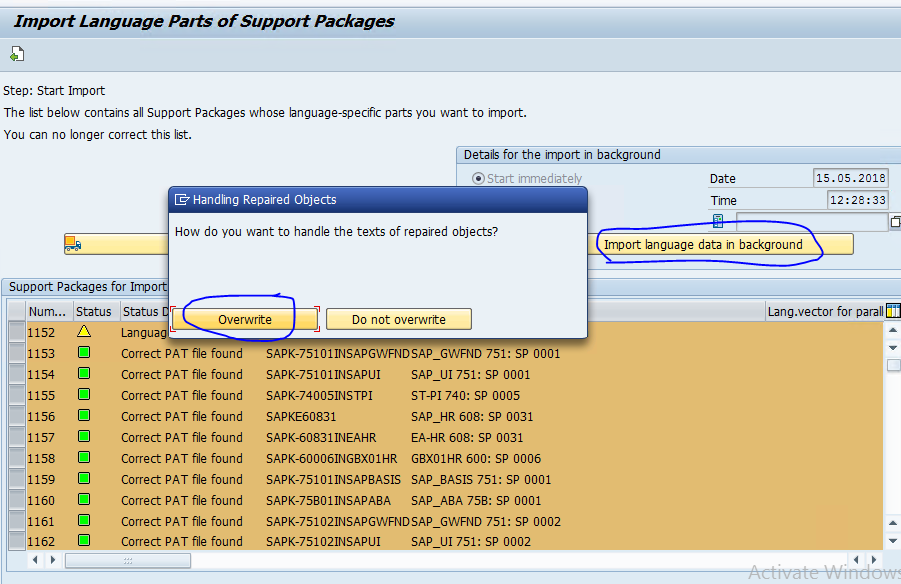
In SMLT, Select Language Navigate to Language🡪Import Package from SMLT.


It will take around 5-6hrs


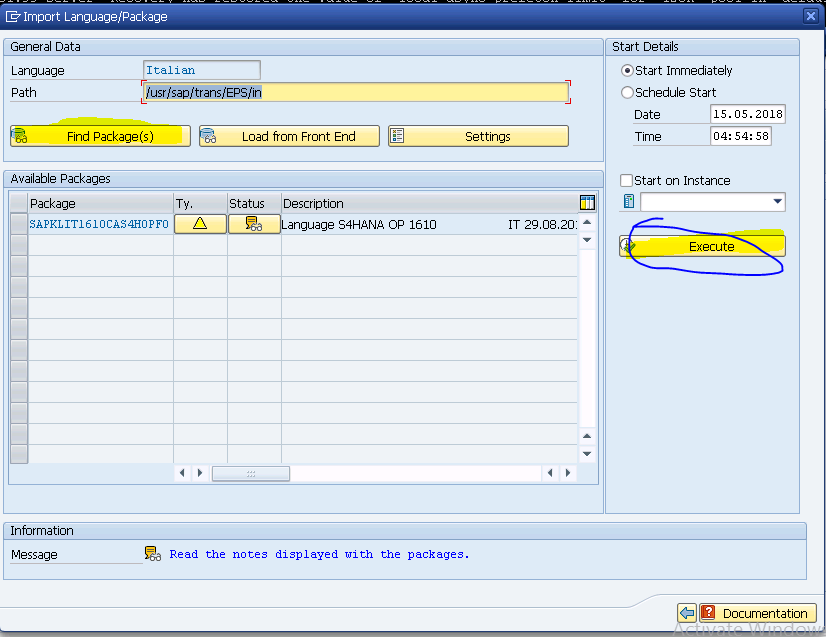
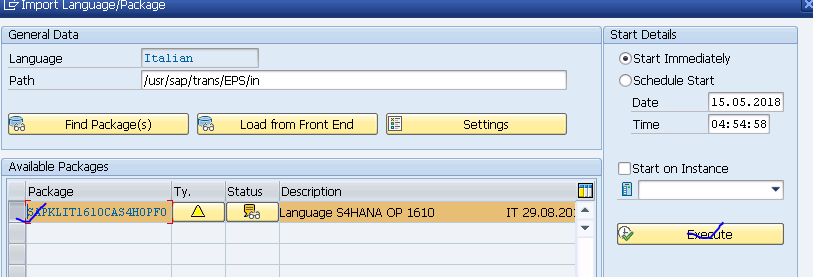
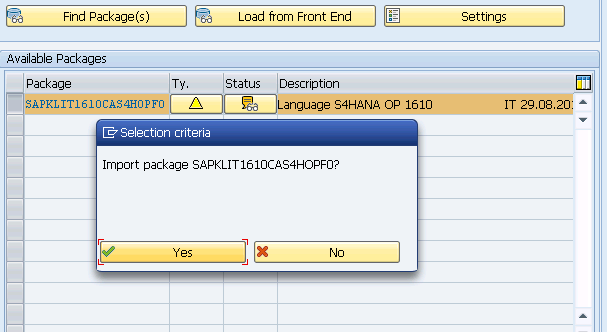
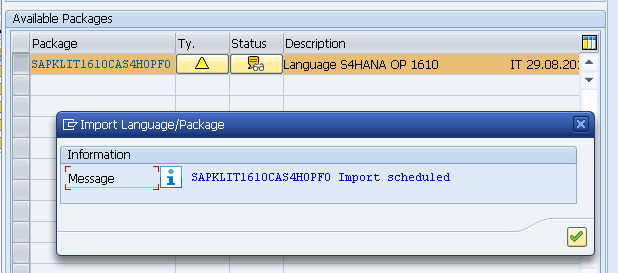
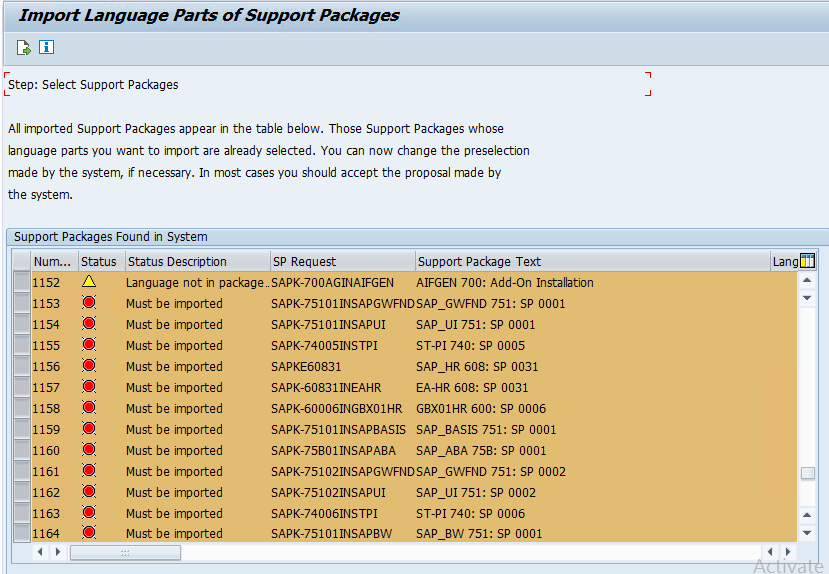
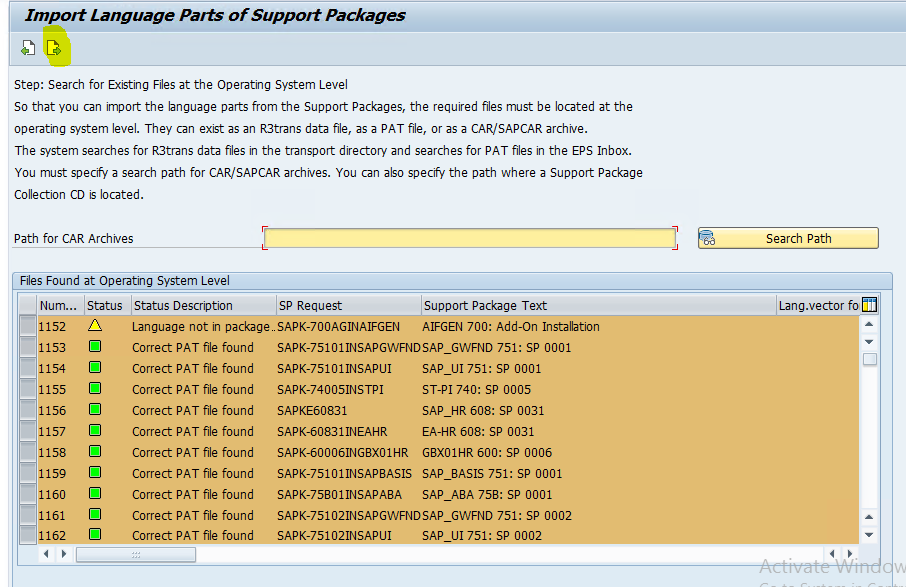
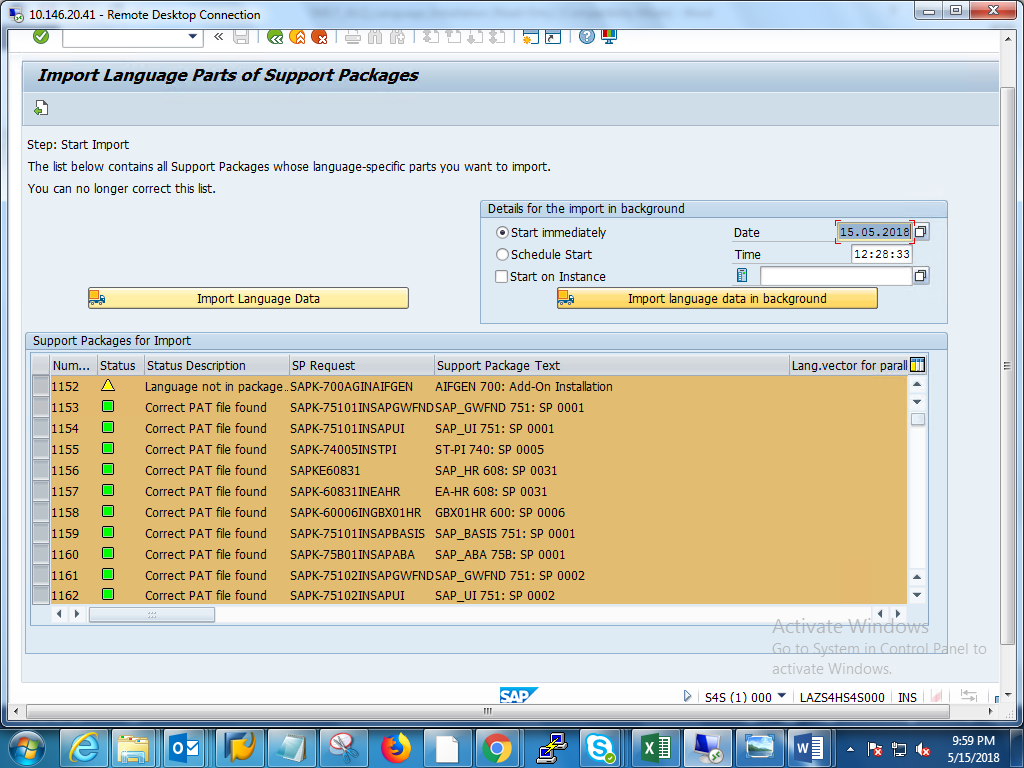
Select Package, and execute.


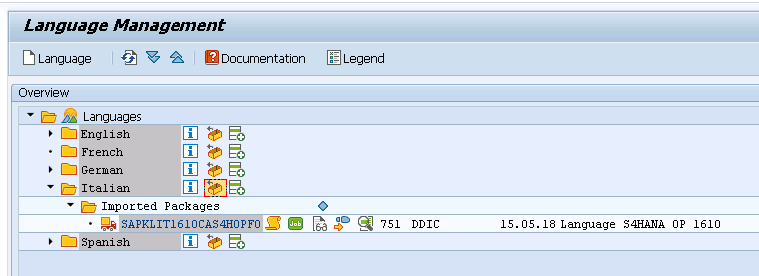
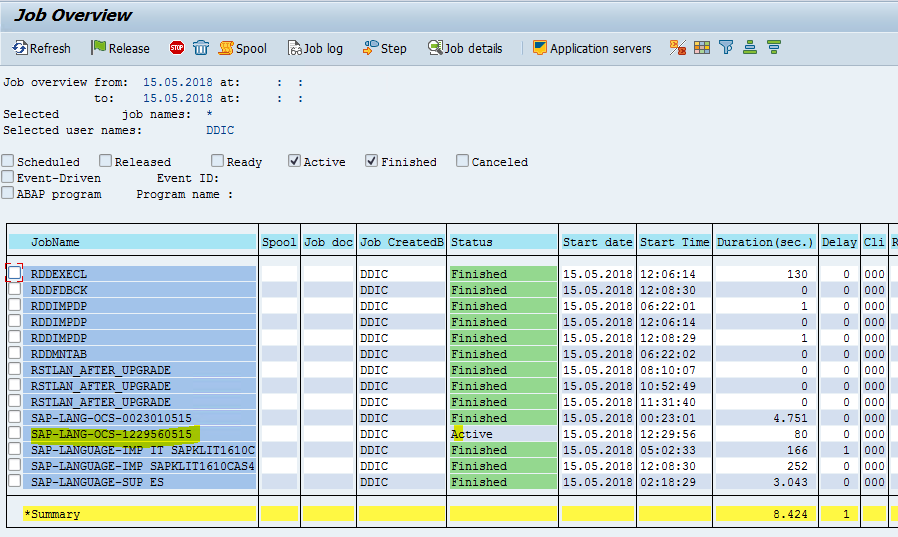
Job will be triggered in SM37


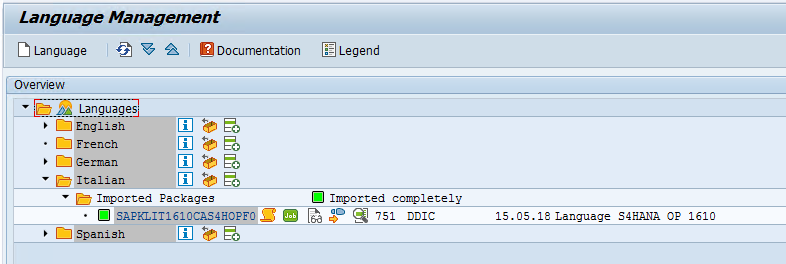
Supplementation started from here.


Particular Client ::910


Friday, 17 November 2023

Monitoring memory Usage of table

 Memory is SAP HANA is used for a variety of purposes.

 First, the operating systems and support files are using memory.

second, SAP HANA has its own code and stack of program files that alsoconsume memory.

Third,memeory is consumed by the column and row store where data is stored.

Finally, SAP HANA needs memory for its working space where computations occur, temporary results are stored, and shared user memory consumption occurs.

In short, physical memory is the maximum memory available, some of which is used by the operating systems and files.The allocated limit is what is "given" to SAP HANA, and the remaining memory is free space.These allocations are important because you're using preallocated memory pools, and you can't rely on Linux operating system information for memory management.However,you can get this information in many other ways.

In addition to the memory consumption and memory tracking information in the preceding sections, you can also obtain memory information using SQL statements. In the M_SERVICE_MEMORY view, you can  execute a set of predefined SQL statements provided by SAP, including those shown below:


To access these statements, open the SQL console from the context menu of the VIEWS folder in  the SYS schema.


Total Memory Used by All Row Tables:
Select round (sum(USED_FIXED_PART_SIZE +USED_VARIABLE_PART_SIZE)/1024/1024) AS "ROW Tables MB" FROM M_RS_TABLES;


Total Memory used by All Column Tables:

Select round (sum(MEMORY_SIZE_IN_TOTAL)/1024/1024) AS "Column Tables MB" FROM M_CS_TABLES;

Total Memory Used by all column Tables in a Schema

Select SCHEMA_NAME AS "Schema", round (sum(MEMORY_SIZE_IN_TOTAL) /1024/1024) AS "MB" FROM M_CS_TABLES GROUP BY SCHEMA_NAME ORDER BY "MB" DESC;


For column tables, SAP HANA sometimes unloads infrequently used columns from memory to free up space when the allocated memory threshold is near the used capacity.So, when memory consumption is estimated, it's important to look at all column tables, not just those currently loaded in memory. You can see all column table sizes in a schema by using the SAP provided SQL statement:


Total Memory by column Tables in a schema:

Select TABLE_NAME AS "Table", round (MEMORY_SIZE_IN_TOTAL/1024/1024, 2)as "MB" FROM M_CS_TABLES WHERE SCHEMA_NAME = 'SYSTEM' ORDER BY "MB" DESC;

Select TABLE_NAME AS "Table", round (MEMORY_SIZE_IN_TOTAL/1024/1024, 2)as "MB" FROM M_CS_TABLES WHERE SCHEMA_NAME = 'XJRM63' ORDER BY "MB" DESC;

Monday, 6 March 2023

List of freelancing work

In case any one want below freelancing work. contact me on - whatsapp link

VM services:

AWS: create
           /maintain
          /modify the VMs 

Azure: create
             /maintain
            /modify the VMs 


SAP BASIS:

1.User administration in ABAP server/ CUA configuration /EULA support. 
2.client administration - 1. Local 2. export & import 3. Remote. 
2.IDES installation. 
3.SAP ABAP server installations.
4.System export and import - (on premise to cloud). 
5.SUM tool upgrades. 
6. SUM with DMO
7. SYSTEM conversion from ECC to S/4 HANA.
8.Kernel upgrades.
9. SAP support portal administration.

SAP HANA:

1.Provide Cloud infra for SAP HANA servers.
2.SAP HANA Installations.
3.SAP HANA upgrades.
4.SAP HANA Mini checks.
5.HADR configuration / monitoring.

Sunday, 6 December 2020

Different sync methods in SAP HANA HADR


Reference link:

https://blogs.sap.com/2019/10/18/sap-hana-high-availability/

SAP HANA database sizing with quick sizer


What is Sizing?                                                                                                                                      


  • For sizing we have identified three different and independent sizing models that have different advantages and disadvantages. The first two, user-based sizing and throughput-based sizing, have been implemented in the Quick Sizer.


Steps involved in Sizing:


  1. Access the web link for SAP sizing benchmark site: http://www.sap.com/sizing
  2. Navigate Quick Sizing section.


Based on the Business requirements,Select the required option.

    3. List of options available are almost same in all the 3 options.


4. Enter the details Customer no.  & Project Name. click on create project.
    Then the screen looks likes the below.
if you want to limit the user, you can here as highlighted below.

5. Shall limit the user access by the above highlighted option.

6. As a Next step, select the exact required Application in the left bottom side section.


7. input for sizing can be based on user based or throughput based or both.


8. provide the remaining inputs also & click on calculate result.


9. The result with supportive hardware vendor will appears in the next screen.


Important links:

Saturday, 28 November 2020

Killing long running unresponsive dialog work process

 Killing long running unresponsive dialog work process


  • Access the T-code: SM50
  • Select the long running unresponsive dialog work process.

  • Perform the below navigation.

  •  Click on Yes.


Manually switching of operation modes

 To know more about operation modes: Click here

During year end activity.

During Weekend.

or when ever their is not user traffic and perform the below process. To switch operation modes manually.


  • Run the T-code: RZ03.
  • Navigate to Control --> Switch operation mode --> All servers.