Showing posts with label server. Show all posts

Sunday, 26 November 2023

How To Backup Windows Server 2016

 How To Backup Windows Server 2016


Here we’ll show you how to install the Windows Server Backup feature in Windows Server 2016 with PowerShell and then configure basic server backups.

We’ll also take a quick look at how the backup files are stored and see if they are at all encrypted or not.

In order to perform simple backup and restores out of the box, Windows Server 2016 provides the Windows Server Backup feature. While this does work it is fairly basic and lacks many useful features, if you have many critical servers to backup I highly recommend that you look at something else such as Microsoft’s Data Protection Manager (DPM) or a third party backup solution from some other vendor.

An example of this is that when you backup over the network to an external share with Windows Server Backup you can only store one restore point at a time, any further backups will overwrite existing ones which isn’t very useful if you actually need some sort of retention. The backups are also managed on a per server basis which makes them difficult to maintain and manage.

Install Windows Server Backup Feature

Before we can actually configure the backups, we must first install the Windows Server Backup feature. This can be done through the graphical user interface, however it’s just faster to simply use PowerShell.

First we’ll use the Get-WindowsFeature cmdlet to search for available features that contain the string ‘*Backup*’ in the Name field.

PS C:\> Get-WindowsFeature -Name *Backup*


As we can see Windows-Server-Backup is available for install but not currently installed.

Next we use the Install-WindowsFeature cmdlet to install the Windows-Server-Backup feature, as shown below.

PS C:\> Install-WindowsFeature -Name Windows-Server-Backup


Once complete we should see that the installation has completed successfully, no reboot is required for this feature, we can begin using it straight away.

Configure Backups

Now that we have installed the Windows Server Backup feature, we can begin to configure our server backups. To begin we’re going to open the Windows Server Backup console from the Tools menu in Server Manager as shown below.


From the wbadmin window that opens up, select “Local Backup” from the menu on the left. We will see that there is a warning noting that no backup has been configured for this computer, which is currently expected. We can either configure a backup schedule which will perform the backup as we define, or we can perform a once off backup. Here we’ll setup a backup schedule, by clicking “Backup Schedule” on the right.


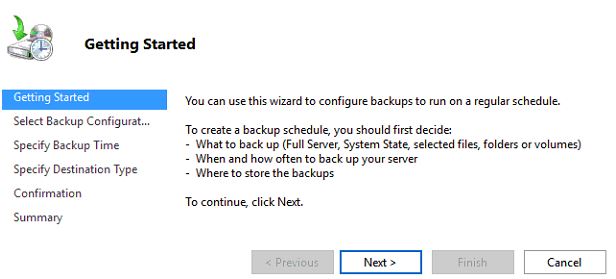
This will open up a Getting Started window advising that we can use this wizard to configure a regular backup schedule for the full server, system state, selected files, folders or entire volumes – click Next to proceed.


On the next Select Backup Configuration window we can select if we want to perform a full server backup which is the recommended and default action, or we can optionally select custom to pick specific volumes or files that we want to backup rather than the full server. In this example we will be configuring a full server backup, however you can change this to suit your requirements.


The next window allows us to specify the time the backup should run. We can set the backup to run once daily at a specified time, or we can optionally have it run multiple times per day by selecting the more than once a day option and adding the times the backup should run to the right side.


Next we will be asked to specify the destination of our backup data. The recommended option is to store the data on a separate disk that is attached to the server, however we can also change this to backup to another volume, or a network share. In this example I’ll be using a network share as I have one available, however note that there is a limitation of this, we will only be able to store one backup point at a time as new backups will overwrite the existing one. This limitation does not exist when you backup to another disk or volume.

We will now specify the network location, here I pick a file share that is available on the local network and click Next to continue. If you selected a disk or volume destination rather than network, you would instead be asked to pick that disk or volume here.


Finally we are presented with a confirmation screen which will summarize our options, click the Finish button to complete the process and accept this, or otherwise go back and make any changes as needed. The summary notes that as we are performing a full backup, we will be able to perform bare metal recovery of the entire system which is fairly powerful.


That’s it, the backup should automatically start at the time specified. We can manually initiate it by going back to the Windows Server Backup window and selecting “Backup Once”. From here we are given the option to create a once off backup based off of our scheduled backup, so all of the same settings will be used but we will be running the backup now rather than at the scheduled time.

Are Windows Server Backups Encrypted?

This is a common question that I’ve seen asked a few times, so I thought I’d take the opportunity to answer it here. No, by default backups in Windows Server 2016 (and previous versions for that matter) are not encrypted. We can confirm this by simply browsing to the location that we have specified to backup the data to and look through it. Primarily a .vhdx file is created for the C:\ drive of the server, which we can easily mount through disk manager, assign a drive letter to and then browse through the files and folders.

To encrypt the backup files we could setup Bitlocker on the disks where the backups are being stored, however note that this only protects the data at rest. If the data can be accessed while the drive is available for the backup to work, it could also be read by any potential attacker during this time.

Summary

We have shown you how to install the Windows Server Backup feature in Windows Server 2016 using PowerShell, and then configure a basic backup schedule to a network share.

We also then confirmed that the backup files are not encrypted, so additional steps should be taken to protect them.


Friday, 18 June 2021

Enqueue work process utilized percentage monitoring

 in this post, how much enqueue WP is filled info will be shown.


Practical steps:

1. Access the T-code SM12.

2.Resultant screen will looks like below:


3. Perform the below highlighted navigation.

    More --> Extra --> Statistics.


4. Maximum no of lock entries supported by the server is 441075

   Current filled level is 334519

Conclusion:

Almost 75%+ portion is filled.


Tuesday, 20 October 2020

SUSE Linux Enterprise Server 15.x for SAP HANA

 Software required:

The following software was used for the installation:

  • ISO file of SUSE Linux Enterprise 15.
  • Required registration key for the SUSE subscriptions in order to get SUSE maintenance updates.
  • To check the minimum requirements between SUSE and SAP HANA: S-Note - 2235581.


You must have the following information about the host on which you intend to perform the installation: 

● IP address of the host 
● IP alias for SAP HANA (optional) 
● Host name of the host 
● Subnet mask 
● Domain name 
● IP address of the name servers 
● Address of a time server (ntp / chrony) 
● Gateway IP address 
● Proxy IP address and credential (optional) 
● Password for the root user and credential (optional) 
● SAP master password (<sid>adm and sapadm password) 
● SID and instance for the SAP HANA installation 
● UID for the linux user of the system database 
● GID for linux group of the SAP Host Agent


Installation on Intel-based Platform (x86_64)


  • Boot your machine from the SUSE Linux Enterprise media.
 Choose Installation on the boot screen, then press Enter. This boots the system and loads the SUSE Linux Enterprise Server installer


  • Updating the Installer (if internet connection is available)                                                                            
The Installer will receive updates if possible.


  • Language, Keyboard and Product Selection 
○ Choose English as language. 
○ Choose SUSE Linux Enterprise Server for SAP Applications 15.


  • Agree with the License Terms.


 You need to accept the agreement by checking I Agree to the License Terms to install SUSE Linux Enterprise Server for SAP Applications 15. Proceed with Next. 

  • After booting into the installation, the installation routine is set up. During this setup, an attempt to configure at least one network interface with DHCP is made. In case this attempt fails, the Network Settings dialog launches. 


    • Choose a network interface from the list and click Edit to change its settings. Use the tabs to configure DNS and routing.

    • When you are done with the network settings, choose Next to proceed or return to the Registration screen. After at least one network interface has been configured you can register your system at the SUSE Customer Center (SCC). 

    • Enter the e-mail address associated with your SCC account and the registration code for SUSE Linux Enterprise Server. A successful registration is a prerequisite for getting product updates and being entitled to technical support. 


    • If SUSE Linux Enterprise Server for SAP Applications has been successfully registered at the SUSE Customer Center, you are asked whether to install the latest available online updates during the installation. If choosing Yes, the system will be installed with the most current packages without having to apply the updates after installation. Activating this option is recommended. If you have successfully registered your system in the previous step, a list of available modules and extensions based on SUSE Linux Enterprise Server is shown. 


    • Add the Legacy Module in order to be able to install for example libopenssl1_0_0. 
    Other interesting modules you may need, depending on your usage of the system, are:
     ○ SUSE Linux Enterprise Live Patching 15 (adds support for performing critical patching) 
    ○ Development Tools Module 15 (contains compilers like gcc) 
    ○ If you use SAP HANA in the public clouds, the Public Cloud Module 15
     Choose Next to proceed with the installation workflow.


    • After all extensions and modules are registered the next step is available. The installation of Add On Product’s can be prepared if needed. Proceed with Next. 

    • Choose Next for the System Role selection.

    • Choose the default SLES for SAP Applications and choose Next. This option is the preferred and the recommended installation. 


    check the checkbox for Enable remote Desktop protocol(RDP) service and open port in firewall option,  go continue with Next.


    Wednesday, 6 May 2020

    2679373 - SWPM SYB: unable to set up backup server

    Symptom

    Error reported by SAP Installer is similar to the following:
    Assertion failed: Unable to set up backup server. Refer to trace file sapinst_dev.log for further information.

    Other Terms

    ASE, backup server

    Reason and Prerequisites

    You are trying to install an SAP System based on ASE release 16.0 SP03 PL04 on the AIX platform. The host is configured to use virtual host names.
    The SAP installer presents the message "Unable to set up backup server" and the installer's trace file sapinst_dev.log includes entries like:

    Building Backup Server '<SID>_BS':
    Writing entry into directory services...
    Directory services entry complete.
    Writing RUN_<SID>_BS file...
    RUN_POP_BS file complete.
    Starting server...
    Unable to boot server '<SID>_BS'.  
    Task failed
    Server '<SID>_BS' was not created.

    The corresponding backup server log file /sybase/<SID>/ASE-16_0/install/<SID>_BS.log includes traces like:

    Started listener at tcp <IP ADDRESS 1> 4902
    Backup Server: 2.24.2.1: The host '<IP ADDRESS 2>' is not authorized to connect to this Backup Server.
    Backup Server: 5.40.2.1: Login host authentication has failed.

    The root cause of the issue is that backup server does not recognize that IP ADDRESS 1 and IP ADDRESS 2 are the same host and requires a "remote host configuration". Further information about the topic can be found in the ASE documentation in the chapter "Remote Dump Host Control".

    Solution

    Create text file /sybase/<SID>/hosts.allow with the IP addresses from the backup server log with the following line:

    <IP ADDRESS 1> <IP ADDRESS 2>

    Set the file ownership to syb<sid>:sapsys with permission 640.
    Terminate the running backup server with the OS command 'kill'.
    Press the 'retry' button in the SAP installer dialog screen.

    Monday, 6 April 2020

    AS JAVA Activity 1- links for accessing JAVA AS


    1.  http://<host>:<port>/nwa  - Netweaver Adminitration
    2.  http://<hostname>:5<NN>00/irj/portal - login page
    config tool OS level path:

    /usr/sap/<SID>/J<XX>/Jee/configtool.sh --> run this script with root user.

    Saturday, 7 March 2020

    Backup of file system using scripts and moving the backup file to remote server.

     #!/bin/bash
    # This script is used to take backup of mount point /var and /etc

    tar -cvzf /tmp/backup.tar.gz /var /tmp
    find /tmp/backup.tar.gz -mtime +1 -type f -print &> /dev/null
    If [ $? -eq 0 ]
            then
            echo backup completed successfully
            echo
     echo moving backup file to backup  server...
       echo .
       echo ..
       echo ...
    scp /tmp/backup.tar.gz  root@192.168.1.1 x:/backup/
    else
    echo backup failed
    echo
    echo troubleshoot the script
    fi

    :wq!

    Monday, 2 March 2020

    T-code SMMS: SAP Message Server Monitor


    SMMS: SAP Message Server Monitor


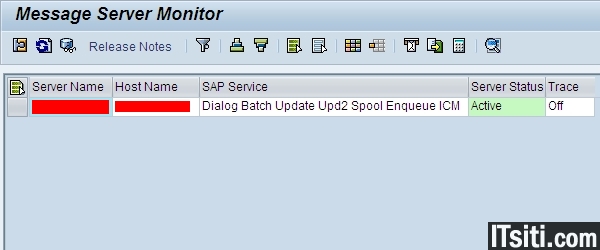
    You can use the message server monitor to closely monitor the functioning of the message server. The initial screen is identical to the SAP Application Server Overview (SM51). All SAP servers that have logged on to the message server are displayed. To monitor the message server, you can use the Message Server Monitor (transaction SMMS) in the SAP System. You can check and change all the important settings, create and view traces, read statistics, and so on.

    Prerequisites

    You are logged onto the SAP system, and the message server is running.

    Features

    The menu option Goto contains all of the functions of the message server monitor.

    Display Details

    To view detailed information about the client on which the cursor is positioned, choose Goto > Display  details.

    Information about the Release

    To view detailed information about the release of the message server, choose Goto > Release Notes. The release notes provide information on the version of the SAP Message Server, and on the release and Support Package level of the SAP kernel. Kernel information tells you the release of the SAP kernel. Besides kernel release and compile information, this screen provides the following information:
    • Update level specifies with which kernel releases the kernel can run in an SAP System. If different application servers are to run with different kernel patch levels in one system, they must all have the same update level.
    • Patch number specifies the last Support Package level that is relevant for the component message server.
    • Source ID indicates the actual kernel patch level (the number after the full stop).

    Hardware Key

    You can display the hardware key of your SAP system, which you need to install the SAP license, by choosing Goto > Hardware Keys.

    Parameters

    You can view all the parameters associated with the Message server by choosing Goto > Parameters > Display. Some of these parameters can be changed dynamically while the system is running; to do this, choose Goto > Parameter > Change. You can display the RZ11 documentation for every parameter. To do this, place your cursor on the parameter name and choose Documentation.

    Statistics

    You can activate, display, deactivate, or reset Message server statistics. To do this, choose Goto > Statistics. The statistics include information on, among other things, the number of logins, requests received, bytes written and read.

    Trace

    You can access the following functions of the message server trace by choosing Goto > Trace:
    • Display trace file (dev_ms)
    • Reset trace file
    • Increase or decrease trace level

    Services

    To display the open ports on the message server choose Goto > Services. On these ports you can access the message server, if you want to Monitor the Message Server from the Browser.

    Logon Data

    You can display the logon data for the individual SAP application servers that are currently logged on to the message server. To do so, select a server and choose Goto > Logon data > Display.
    The number of dialog work processes (in the dialog mode) that the message server needs for load distribution is displayed under Additional data. The relevant dispatcher sends this data to the message server when the server is started.

    Expert Functions

    These functions are required for analysis performed by SAP, and are not described further here. Exceptions to this are the server functions Shut Down Server (Hard), Shut Down Server (Soft,) Terminate connection, Deactivate and Activate. These functions control the state of the application server.
    My Reference:  

    Sunday, 8 December 2019

    How to start sybase database and Backup server


    1. login with root or user with sudo -i authorization.
    2. su - syb<sid>

    the screen looks like below:

    hostname> su - syb<sid>
    syb<sid>@hostname: 

         3. cd /sybase/sybase_ase/install/RUN_<SID>                        
                 startserver -f  RUN_<SID>
    Note: the above command is for starting the data server.which enable to start sybase Database.

        4.cd /sybase/sybase_ase_/install/RUN_<SID>_BS
                 startserver -f  RUN_<SID>_BS
    Note: the above command is for starting the Backup server.which needs while taking backup of server.


    • by performing step 3 and 4, makes the sybase database turn on:
    can ensure through the command: ps -ef | grep -i syb<sid>

    1. dataserver
    2. backupserver.
    3. jsagent(job schedule agent).
    on linux, a running sybase ASE should have at least the following process.


    Tuesday, 4 June 2019

    BASIS: SAP Production server down

    Article describes...


                                      This article describes about very familiar activity of BASIS consultant called what to do why production server down.


    list of Activities:

    case 1: 
    • check the internet connection in end user system.


    As soon as BASIS consultant got to know the server is not connect from bussiness end users and every thing is good at server side.
      Note: some times it is problem with internet connection also. and business user might not have knowledge on check the internet connection.


    case 2:
    • check the GUI properties 

    in some situations BASIS consultants will moved the server and it's data from on-premises to cloud. in this kind of situations. cross check the GUI properties might help you.


    case 3: 

    check whether the SAP APPLICATION is ON or NOT with the help of SAP MMC (windows) or SAP MC.

    case 4:

    ping the network connection to check network speed.


    in some situations, server connection will takes long time because of less bandwidth internet connection.

                            syntax:        ping -t <server host ip address>
    case 5:

    • check whether the SAP<SID>_<instance no.>  services are running in services.msc or not 
    if not turn it ON.


    case 6:  R3trans -d in the cmd prompt

    to check the connect between database and SAP application server.

    CMD's can help here are:

    1. start DB
    2. HDB start ( only if the database is HANA).
    3. check the internet connectivity between SAP application server and Database.

    case 7: startsap.bat

    check whether the startsap.bat file is running in the cmd prompt of SAPROUTER system or not.

    case 8: check the log in work directory.

    path: usr/sap/SID/instance/work 

    check: 
    • startsrv         for instance start.
    • disp_dev      for dispatcher start problem.
    • disp_wo       for work process.
    • disp_enq      for en queue related logs.

    collect the key words for the error and search in google,Service market place and sap blogs.

    case 9: check for the startup profile,instance profile  old backup file availability.

    replace then as actual profile file and try to start the server.

    reason: because some times the recent change in these profile files may be reason for server down.

    case 10: check the port availability 

    sapstart.srv is used to start sap application.
    • it contains , instance no,wp no.related data to start.
    • when sapstart.srv starts, it will binds with HTTP(5<XX>13) and HTTPS(5<instance number>14) ports.
    check the port configuration in sapctrls<instance number> in etc/services.

    case 11: start the sap application with sapcontrol cmd.

    1. need to log in server with <SID>ADM user or switch to <SID>ADM user from the root user.
    2. cmd -  
    sapcontrol -nr <instance_number> -host <hostname> -prot NI_HTTP -function Start
    sapcontrol -nr <instance_number> -host <hostname> -function Start
    sapcontrol -nr <instance_number> -host <hostname> -function Start


    case 12: 

    start the sap application with SAP MC and check the recent logs

    suppose the server stopped working for the past half an hour on wards. we have option of filter in SAP MC to check the logs for server for half an hour on wards.

    case 13: sapstart.srv is not appeared in services.msc

    /usr/sap/<SID>/DVEMGS00/exe--> found sapstart.exe and run as administrator

    proper root authorization for the files in linux and unix environment.


    case b:

    some times the file size of sapstart.exe is of size ''0'' KB
    At that time need to download from support.sap.com 

    Case 14: enter proper details in instance services.


    case 15: check the  Transaction logs size in the disk .

     their may be the reason of server down because of
    No space in transaction logs.


    case 16: Host entries

    To control & monitor sapstart.exe or sap instance host entries, need to enter in etc/drivers


    to maintain fully qulified hostname

    snote: 1476386,1872990.

    case 17 : check the file path location of exe files


    case 18:


    Note: Ports must be free

    1. dispatcher port: 32<instance no>
    2.gateway port : 33<instance no>
    3.ICM port: 80<instance no>
    4.message server port: 36<instance no>

    Snote: 1845121 - how to find the process listening on port.

    case 19:

    check whether any file system is full.

    cmd for linux based servers       -            df -h
    cmd for unix based servers        -            df -gt
    in window based server Remote desktop access is required to check file system space.


    Note: in all the above 3 server environment, can use the T-code ST06 for SAP Application file system monitoring.

    Case 20:


    if all the above cases were not able to solve the server down issue.


    • check the kernal version of SAP application, with disp+work cmd in /usr/sap/sid/sys/exeuc/NTADM64/ path.
    • download new kernal files with same version. and replace them.

      Note: 10 out of 1 changes are their for the availability of server after this. if all the above 19 cases fails.


    Tuesday, 14 May 2019

    SAP HANA COCKPIT NOTES 14: configuring cockpit settings,Setting Connection Timeout


    Introduction:


    In the Cockpit Manager, as a cockpit administrator, you can select Settings to configure data collection, proxy server settings, and the connection timeout period, and to control whether or not SAP HANA Cockpit displays auto-created groups.


    TASK 1:DATA COLLECTION


    As a cockpit administrator, you can reconfigure the default, pre configured SAP HANA cockpit global settings for collecting monitoring data, such as system status, alert counts, and other data from registered resources.

    Navigation

    In the Cockpit Manager, select Cockpit Settings, and then Data Collection.

    If necessary, you can change the defaults to specify:
    ● How many worker threads the collection service should use. Increasing threads can improve response time but uses more memory. The default is 5 threads.
    ● Whether and how often the cockpit collects system status and alert counts. The default is 60 seconds.
    ● Whether and how often the cockpit collects key performance area monitoring data from each managed resource.The default is 5 minutes.

    There may be a brief lag before your changes in values take effect.

    Note: 

    You can also modify the collection settings for a specific resource by editing the details of that resource. Doing so overrides the global settings for that particular resource. See Override Data Collection for a Resource.


    Tip: 
    • The cockpit can support 1000s of registered resources.
     If the System Health Monitor displays ‘Not Collected’ for specific resources, you may wish to investigate the collection service log for rejected collections and reconfigure the worker threads accordingly.
    Screenshots for the above scenario Task1:

    step1: cockpit manager -->cockpit settings-->Data collection
    Resultant screen look likes below:

    Task 2:setting connection timeout


    screenshot for the above timeout scenario:


    Task 3: setting proxy server


    screenshots for the above TASK 3: SETTING PROXY SERVER

    cockpit manager--> cockpit settings--proxy                                                                                           


    resultant screen:


    TASK 4: Specifying Display of Auto-Generated Groups


    As a cockpit administrator, you can choose whether or not SAP HANA cockpit displays resources as part of auto-created resource groups, or solely as part of resource groups that you create.

     A resource group—a named set of one or more registered resources—controls management and monitoring privileges. When you assign a cockpit user to a resource group that you have created, you enable the user to monitor and manage the group's resources through the cockpit. Each registered resource also belongs to a usage type resource group. These auto-created groups of resources (Production, Test, Development) are based on the system usage type of each resource. System usage type is configured during system installation, or later using the global.ini file with the usage parameter in the system_information section.

    You can choose to hide one or more of the auto-created groups through the Cockpit Manager by selecting Settings, then Display, and deselecting or selecting each box. Opting to hide the auto-created groups does not affect the system usage type associated with the resource. It simply prevents the cockpit from organizing the display of resources by auto-created group.


    screenshots for the above TASK4: scenario