Showing posts with label EC2. Show all posts

Monday, 12 October 2020

EC2 Dedicated host

 * You reserve an entire host on AWS cloud and you launch EC2 instances directly on it.

* it can help in a BYOL(bring your Own license) model or when you have strong regulatory, compliance or security requirements.

* it's overall more expensive and should not use it unless strongly required. you can also reserve dedicated hosts.


Hands for launching dedicated host:

Navigate to instances --> Dedicated Hosts


Click on Allocate a host, as shown below.                                                                                               


provide details:

  1. choose instance type for dedicated host.
  2. Available zone for the dedicated host.
  3. allow instance auto-placement - basically an auto scale of dedicated EC2 instance option.
  4. quality of dedicated EC2 instance.
  5. finally click on Allocate host as highlighted below.


Wednesday, 23 September 2020

Assigning fixed elastic(public) IP to EC2 instance.

 Usually when you stop and then start an EC2 instance, it can changes its public IP.

if you need to have a fixed public IP for your instance, you need an Elastic IP. An Elastic IP is a public IPv4 IP you own as long as you don't delete it.


Practical steps:


From the EC2 instance launch page, Navigate to Network & Security --> Elastic ips.


Click on Allocate new address now.                                                                                                                          


Click on Allocate.

Then the below pop up screen comes up with public IP. Click on Close.                                                                                          

Then from the Elastic IP page, Select the IP address with check box(1 as highlighted below) --> Actions drop down --> Associate Address.


Provide details:                                                                       
Resource type: instance
Instance : Instance ID
Enter private IP details


Enable the Reassociation check box and Click on Associate button.


Then the below conformation screen appear, Saying Associate address request assigned to EC2 instance successfully.


Monday, 21 September 2020

How to make changes in assigning security groups for an existing security groups in EC2

From the EC2 instance launching page --> right click on the instance --> Networking -->Change Security Groups.


Assign or un assign security groups by checkbox &Click on Assign Security Groups.                                        


Wednesday, 16 September 2020

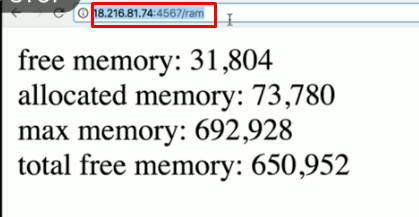
Monitor the EC2 instance RAM, cpu with port no. 4567 in browser

 enable 4567 port in in-bound security group settings.


CPU monitoring:


RAM monitoring:                                                                                                                                             


To check whether the EC2 instance is healthy or not:                                                                               


To get EC2 private ip deatils:                                                                                                                       


Monday, 7 September 2020

logs for bootstrap script

-------------------------------------------------------------------------------------------------------------------------------------------------- 

This post will answer following questions:

1. where to check for bootstrap script result logs.

2.if any command in bootstrap script fails, how to find it.

------------------------------------------------------------------------------------------------------------------------------------------------


Bootstrapping means launching commands when machine starts for the very first time.

Navigation for system logs:

1. Right on the EC2 instance from EC2 instance launch page.

2.follow the below highlighted navigation.


3. The resultant screen looks likes the below screen. can use for further reference in case any command in bootstrap script fails.